 Shotodo
 By
What is a scheduling program for small business and what should it do?
A scheduling program for small business is software that keeps your work hours organized on your phone instead of in your head, a notebook, or a tangle of texts. It has four core jobs: taking bookings from customers, assigning shifts to staff, sending reminders so nobody forgets, and syncing everything to the calendar already on your iPhone.
The last job matters more than it sounds. App-switching costs real time: workers toggle between apps about 1,200 times a day, losing nearly four hours a week just re-focusing, according to ClickUp's productivity research. If your scheduler doesn't feed straight into your calendar and reminders, you pay that tax daily.
The same rule applies to personal schedules. A dentist appointment in a school email still needs to reach your calendar, which is where a screenshot-to-task app like Shotodo earns its keep (see pricing).
How do you choose between booking software and shift scheduling software?
Booking software handles clients who book you. Shift scheduling software handles staff you schedule. Most owners need one, not both, and picking wrong is how you end up paying for features you never open.
Signs you need booking software
Clients choose their own times: haircuts, lessons, consults, appointments. You want a link you can text or put in your email signature so people book themselves and you stop playing phone tag. Reminders that cut no-shows matter more than payroll tools.
Signs you need shift scheduling
You assign the times and your team shows up: a café roster, cleaning crews, weekend cover. The pain is swapping shifts and covering sick days, not taking reservations. If nobody outside the business ever books anything, you don't need a booking page.
| Booking software | Shift scheduling | |
|---|---|---|
| Who picks the time | The client | You |
| Typical use | Salon, tutor, consultant | Café, crew, care team |
| Key feature | Self-serve booking link | Swap and cover shifts |
Either way, the small stuff around the schedule still lands in texts and screenshots. Shotodo turns a screenshot into a saved task in one tap, so a booking confirmation or a shift change gets captured before you forget it (Turn Screenshots into Tasks on iPhone: 3 Ways Compared).
Which features matter most for a team under 10 people?
At this size, four features carry the whole schedule. First, reminders that actually fire: a dentist appointment or a form due Monday should reach your phone without you checking anything. Second, calendar sync, because your calendar is already where you look. Third, mobile-first design: if it doesn't work one-handed from the school pickup line, it won't get used. Fourth, skip the enterprise stuff, seats, approval flows, shift bidding, that you pay for and never touch.
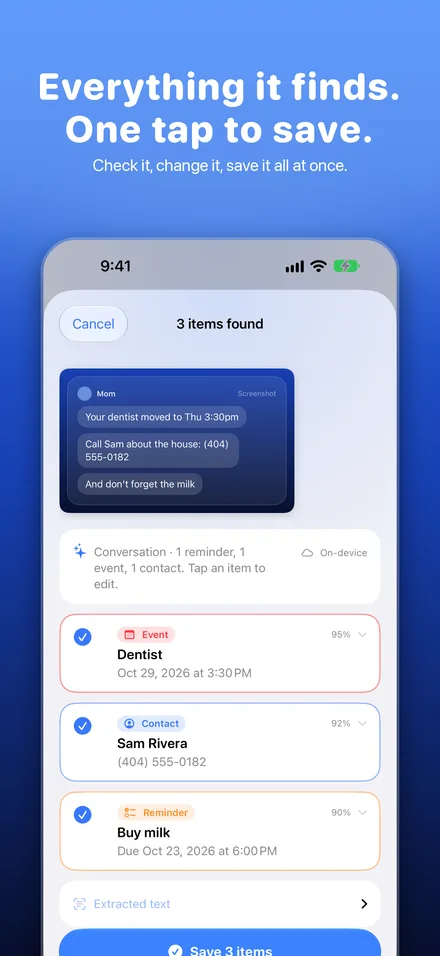
The hidden fifth feature is fewer apps. A task list, a calendar, and a notes app usually live separately, so planning the day means constant jumping between apps. Shotodo's answer is narrow: screenshot the school email or group chat, tap once, and it's saved as a reminder with the details typed for you. It saves a lot of typing, but it doesn't do shift scheduling or booking, so pair it with a calendar rather than replacing one. More on how we work at Shotodo.
Is a free scheduling app for small business enough, or when should you pay?
Free tiers usually cover the basics well: one calendar, a handful of appointments or shifts, and reminders on your phone. If you run the schedule solo and your team checks a shared sheet, a free plan can carry you for months.
Three triggers that push you to a paid plan
The first trigger is staff seats. Most free plans cap how many people can log in, so the moment a second employee needs their own view, you hit the wall. The second is reminders that reach customers instead of just you. Free tiers often keep automated texts and emails behind the paywall, and missed appointments cost more than the subscription. The third is integrations, meaning your booking page talking to your calendar and payments without you copying anything by hand.
Here is the honest way to decide: write down every scheduling task you did by hand last week, then check whether the free plan does each one automatically. If the answer is fewer than two, stay free. If you are retyping details from emails or texts into your calendar, that is the real signal. A tool like Shotodo handles the retyping step cheaply, and a paid scheduler handles the rest, so paying for both beats paying for one big platform you barely use.
How much does scheduling software for small business actually cost per year?
Run the math before you pick. Most paid tools charge per person per month, so team size drives the bill more than any feature list. Start with a headcount, not a feature list, because a five-person team pays five times the solo rate no matter which vendor you choose. Then multiply the per-seat monthly price by twelve and by the number of people who genuinely need their own login, not the number on payroll; a crew that shares one tablet often needs two seats, not eight.
Illustrative figures, not quotes: a solo owner on a free tier pays $0 a year and gets by with Apple Calendar plus reminders. A 5-person team on a paid plan at a typical $5-8 per seat per month lands around $300-480 a year. Bump that to $10-12 a seat and you're near $600-720. Check each vendor's current pricing page before you commit; these numbers are for planning, not shopping.
The free-tier tradeoff is usually history and integrations: free plans often cap how far back you can see edits or who can sync calendars. Paying buys fewer surprises, not more hours.
One honest note about our own app: Shotodo turns a screenshot of a school email into a saved reminder, which cuts the retyping, but it doesn't schedule staff shifts or take bookings. Read its data handling at our privacy page before you trust it with family details.
What integrations should small business scheduling software have?
Three connections matter most: calendar sync, payments, and messaging. Calendar sync is non-negotiable. If a booking or shift tool doesn't write straight into your iPhone calendar, you'll end up checking two apps and eventually miss something. Payments matter if clients pay when they book; messaging matters if your team or customers need reminders and last-minute changes.
The reason to insist on this is attention. Workers toggle between apps 1,200 times a day, burning nearly four hours a week just resetting their focus, per ClickUp's research. Every tool that doesn't talk to your calendar adds more of that switching.
Honestly, Shotodo only covers part of this. It sends a screenshot into Reminders or Calendar so you stop retyping, but it doesn't handle payments or staff messaging. You'd pair it with a booking or scheduling tool rather than replace one.
How do you migrate from spreadsheets to a scheduling program without losing data?
Export first. From Google Sheets or Excel, download your sheet as a CSV file, the plain-text format defined in RFC 4180 that every scheduling tool can read. One column per field: date, time, who, what. If your dates live in three columns, merge them before you export, because split dates are the number one thing that breaks on import.
Clean next. Delete test rows, fix names spelled two ways ("Mom" and "mum" become two people), and standardize times to a single format.
Then import into your new tool and spot-check ten rows against the original, especially recurring items like the dentist appointment.
Finally, run both for two weeks. Keep the spreadsheet read-only as a backup, log new items only in the new tool, and delete the spreadsheet once nothing is missing.
Where does a screenshot-to-task app fit in small business scheduling?
Shotodo does one job: you screenshot a text, email, or group chat with an appointment or delivery in it, and one tap saves it to Apple Reminders or Calendar. No more retyping the dentist appointment or the supplier's delivery window. That's it.
Run it through the same five criteria and be honest about where it falls short. Team size: fine for a solo operator, no shared team calendar. Booking vs. shift scheduling: it does neither. It won't take customer bookings or build a rota the way a dedicated scheduler does.
Integrations: it writes to Reminders and Calendar and stops there. Mobile: it lives on your iPhone, which is where those messages arrive anyway. Cost: one small purchase, no subscription to add to the yearly math.
So treat it as a capture step, not a scheduling program. If you run your week in Reminders and Calendar and the pain is typing details in by hand, it closes that gap. If you need bookings or shifts, you need the categories above.
FAQ
What's the best scheduling app for small business if I work alone?
There's no single winner; the right pick depends on whether clients book you or you assign shifts. If clients book, look at self-serve booking tools with reminders that cut no-shows. If you run solo shifts, a free tier plus Apple Calendar usually covers it. Since you have no seats to pay for, a free plan often carries you indefinitely.
Can I use Apple Calendar and Reminders instead of paying for scheduling software?
Often, yes. If you work alone, don't take customer bookings, and your team is small enough to check a shared sheet, Calendar plus Reminders handles appointments, shifts, and alerts at $0. The gap appears when you need clients to book themselves, automated customer reminders, or staff logins. Until one of those triggers hits, stay free.
Do scheduling apps work offline when I'm on a job site with no signal?
It varies by tool, so test before you commit. Many calendar apps cache your schedule locally, so you can view the day without signal and changes sync later. Booking pages and cloud rosters usually need a connection to update. Check whether the app lets you view and edit offline, and whether edits push once you're back in range.
How do I stop double bookings when my spouse also manages the calendar?
Use a shared calendar that both of you write to, so every entry lives in one place rather than in two separate apps or a chain of texts. Most scheduling tools offer multiple logins or a shared view, and that's usually the first paid feature worth buying. Agree on one rule: whoever adds an appointment does it in the shared calendar immediately.
Recap
- Choose booking software if clients pick their own times, or shift scheduling software if you assign staff hours; most owners need one, not both.
- Teams under 10 people need four features: reliable reminders, calendar sync, mobile-first design, and no unused enterprise seats.
- A free scheduling plan is enough until you hit one of three triggers: staff logins, automated customer reminders, or integrations.
- A 5-person team on a typical $5-8 per seat per month plan pays roughly $300-480 a year, so team size drives cost more than features.
- Migrate from spreadsheets by exporting a CSV with one column per field, cleaning duplicates, spot-checking ten rows, and running both systems for two weeks.
Written with help from AI and reviewed by Shotodo. Corrections go to [email protected].