 Shotodo
 vs Apple's built-in screenshot tools: do you need an app?
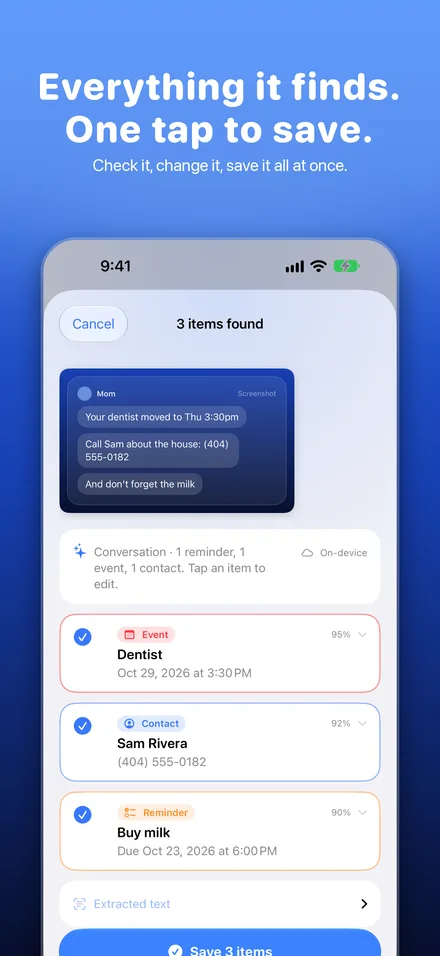
Your iPhone can already turn a screenshot into one calendar event, if it has Apple Intelligence. Apple's free tool does not make reminders or contacts, and it handles one event at a time. Shotodo finds every event, reminder and contact in a screenshot, works on any iPhone with iOS 26, and saves everything in one tap.
 By Arron Pinder, founder of Shotodo,
What can Apple's built-in tools do with a screenshot?
On iPhones with Apple Intelligence, you can open a screenshot with visual intelligence. If the screenshot shows a date and time, your iPhone offers Add to Calendar, and you tap Create Event. Apple's tool is free, it is already on your phone, and it works well for one event.
Live Text, which works on more iPhones, lets you select and copy the words in a screenshot. You still have to paste the words into Reminders or Calendar yourself.
How does Shotodo compare to Apple's built-in tools?
| Apple's built-in tools | Shotodo | |
|---|---|---|
| Calendar events | Yes, one at a time | Yes, every one in the screenshot |
| Reminders | No | Yes |
| Contacts | No | Yes |
| Many old screenshots at once | One by one | Up to 10 at once |
| Opens on every screenshot | No | Yes, after a one-time setup |
| iPhones it works on | Apple Intelligence models | Any iPhone on iOS 26 or later |
| Cost | Free | $5.99 a month or $39.99 a year, 7 days free |
What do real screenshots look like in each one?
- A school text about pickup time. Apple's tool can add the pickup as a calendar event. Shotodo adds the event too, plus a reminder if the text asks you to bring something.
- A bill with a due date. Apple's tool has no reminder option for a bill. Shotodo makes a reminder named after the company, with the due date and the amount.
- A list of missed calls. Apple's tool has nothing to add, because there is no event. Shotodo makes a "call back" reminder for each person and can save the number as a contact.
Which one should you use?
Use Apple's built-in tools if you have an Apple Intelligence iPhone and only need to add an event now and then. Apple's tool is free and good at that one job.
Use Shotodo if your screenshots hold more than events: bills, missed calls, to-dos and new contacts. Shotodo is also the pick for older iPhones without Apple Intelligence, and for clearing a pile of old screenshots 10 at a time.
Sources
- Learn about what's around you with Visual Intelligence on iPhone, Apple Support
- Use Live Text with your iPhone camera, Apple Support
Questions
Doesn't my iPhone already do this?
Partly. On iPhones with Apple Intelligence, you can open a screenshot with visual intelligence and tap Add to Calendar to make one event. Your iPhone does not make reminders or contacts from a screenshot, and it does one event at a time. Shotodo finds every event, reminder and contact in a screenshot and saves them in one tap.
Is Apple's Add to Calendar free?
Yes. It comes with iOS on iPhones that support Apple Intelligence. There is nothing to download or pay for.
Does Shotodo work on iPhones without Apple Intelligence?
Yes. Shotodo works on any iPhone with iOS 26 or later. Without Apple Intelligence, Shotodo reads up to 15 screenshots a day with Shotodo Cloud, which only sees the text, never the image.
Is Shotodo worth paying for if I have Apple Intelligence?
It depends on how many screenshots you save. If you only add an event now and then, Apple's free tool is enough. If your screenshots hold reminders, bills, missed calls and contacts, Shotodo saves all of them at once for $5.99 a month or $39.99 a year, with 7 days free.