 Shotodo
 By
What to know
- Set a reminder by typing it or asking Siri, then tap the info button to add a date, time, location, or tag.
- Organize reminders into household lists like School or Home, and share a list with family so entries sync to both phones.
- Tags and smart lists such as Today, Scheduled, and Flagged sort reminders automatically with no manual filing.
- Most missed alerts come from disabled notifications, a Focus mode, or iCloud sync problems, all fixable in Settings.
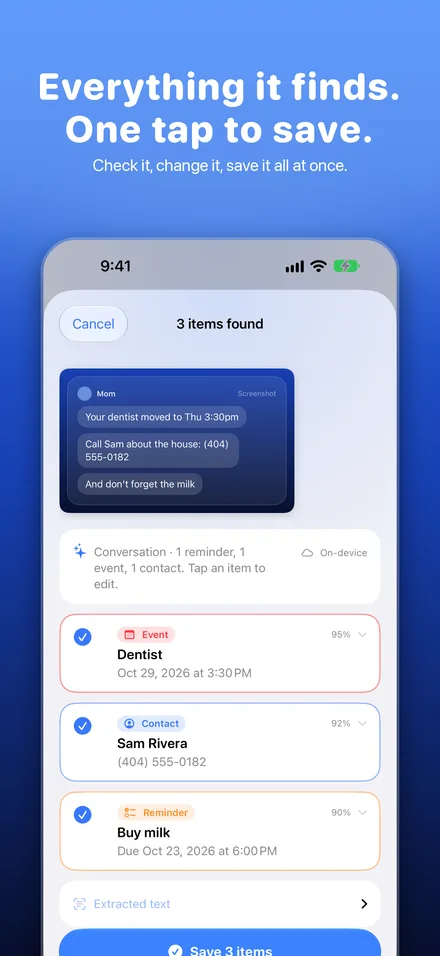
- Screenshot-to-task apps like Shotodo remove the retyping step when plans arrive as texts or school emails.
How does the Reminders app work on iPhone?
The Reminders app on iPhone is Apple's built-in to-do list. You type a reminder, give it a date, time, or place, and your iPhone pings you when it's due. Everything you add saves to iCloud, so a reminder created on your phone shows up on your iPad, Mac, and Apple Watch.
Where reminders live and how they sync
Every reminder is stored in a list, and lists sync through iCloud as long as you're signed in with your Apple ID under Settings. Apple's own guide to using the Reminders app on iPhone covers creating, editing, and sharing lists in detail. If sync fails, it's usually a sign-in or iCloud settings issue, which we'll fix later in this article.
Reminders vs. Calendar vs. Notes: which holds what
Calendar answers "when am I busy?" — dentist appointment, school pickup. Reminders answers "what do I need to do?" — don't forget the milk, the form due Monday. Notes holds the details, like the party address from the group chat. The catch: plans arrive as texts and school emails, and retyping them by hand is where things get dropped. That's the gap Shotodo fills — screenshot it, and it's saved as a reminder in seconds.
How do you set a reminder on iPhone step by step?
Open the Reminders app, tap New Reminder in the bottom corner, and type what needs doing. Tap the reminder, then the info (i) button to add a date, a time, a location, or a note. Tap Done and it's saved to your list.
Type it or say it: manual entry vs. Siri
Typing works, but saying it is faster. Hold the side button (or say "Hey Siri") and speak: "Remind me to book the dentist appointment Friday at 9am." Siri fills in the date and time for you. The catch with both methods is the same: the plan has to be in front of you first. If the birthday party is buried in a school email or the group chat, you still have to read it, switch apps, and retype it. That retyping step is where things get forgotten. Apps like Shotodo (https://shotodo.app/screenshot-to-task/) shortcut that step: screenshot the message, and the details land in Reminders without the typing.
Adding details: time, location, notes, flags
Tap the info (i) icon to set a specific time, get alerted when you arrive at or leave a place, add notes like "bring the form," or flag it so it shows in your flagged smart list.
How do you organize reminders into lists and shared lists?
Setting up lists that match your household
Open Reminders, tap Add List, and name it after how your family actually thinks: School, Home, Groceries, Sports. Tap Edit at the top to rename, recolor, or reorder them, and drag one list onto another to group them, so School and Sports sit under a single "Kids" heading. Apple's own guide covers smart lists and tags, which pull matching reminders from every list into one view, so a #errands tag can gather milk, dry cleaning, and the pharmacy run no matter where you saved it (Apple Support).
Sharing a list with family members
Swipe left on any list, tap Share List, and send the invite by Messages or Mail to your spouse or anyone in the family group chat. Once they accept, anything either of you adds shows up on both phones, so "dentist appointment Thursday" only gets typed once. One honest catch: the screenshot of the party invite in your camera roll still has to be retyped by hand. That's the gap Shotodo fills — screenshot it, and it's saved as a reminder.
How do smart lists, tags, and location alerts work in Apple Reminders?
Tags and smart lists
Type #groceries or #school at the end of any reminder and it becomes a tag you can tap later. Reminders then builds smart lists automatically: Today, Scheduled, All, Flagged, and any tag you have used. Tap Flag on the dentist appointment and it shows up in Flagged without you filing it anywhere. These lists update themselves, so nothing gets sorted by hand.
Location-based reminders: 'don't forget the milk'
Open a reminder, tap the info icon, and choose "Remind me at a location." Set it to trigger when you arrive at the supermarket or leave home, and your phone pings you at the right spot instead of a time you guessed. It works best when the address is saved in Contacts, and your iPhone needs location services turned on for the Reminders app.
One honest catch: if the plan arrives as a screenshot in a group chat, you still have to retype it before any of this helps. That typing step is what Shotodo removes, and how it handles your data is spelled out at https://shotodo.app/privacy/.
Why are my iPhone reminders not working or not alerting me?
Most missed reminders come down to one of three things: notifications are switched off or silenced, iCloud isn't syncing, or the reminder landed on a device that never got the update. Work through the table below, then check the fixes underneath.
| Symptom | Likely cause | Fix |
|---|---|---|
| No alert at the set time | Notifications off, or a Focus mode is blocking them | Settings > Notifications > Reminders: allow notifications, set a sound, turn off Focus |
| Silent reminder, banner only | No alert sound chosen | Same screen: pick a sound and enable Time Sensitive |
| Reminder shows on iPhone but not iPad | iCloud sync delay or wrong account | Check both devices use the same Apple ID and are online |
| Reminders never appear on a second device at all | Reminders toggled off in iCloud | Settings > [your name] > iCloud > turn on Reminders |
Missed alerts: notification settings and Focus modes
Open Settings, tap Notifications, then Reminders, and confirm Allow Notifications is on with a sound selected. A Focus mode like Do Not Disturb or Sleep will swallow reminder alerts silently, so check whether one is scheduled around the time your reminder fires. Apple's own guidance on notification settings and Focus modes walks through allowing Time Sensitive alerts so dentist appointments still come through.
iCloud sync delays: checking account and connection
Sync needs Wi-Fi or cellular and the same Apple ID on every device. If a reminder added on your phone hasn't reached your iPad after a few minutes, open the Reminders app, tap the list, and pull down to refresh. Signing out of iCloud and back in fixes stubborn cases.
Reminders not appearing on a second device
Go to Settings, tap your name, then iCloud, and make sure Reminders is switched on for both devices. If it is on and items still lag, update iOS on both, since old versions can sync slowly. Once things flow again, screenshotting a school email into a reminder takes one tap instead of retyping it, and we log every fix in the Shotodo changelog.
How do you use Reminders with Apple Watch?
What works on the watch and what doesn't
The Reminders app on your Apple Watch mirrors whatever is on your iPhone, so any reminder you set at home shows up on your wrist. You can view today's list, tick items off as done, and create a new reminder by tapping the + button or by raising your wrist and saying "Remind me to call the dentist at 3." What the watch does not do well is heavy organizing: moving items between lists, editing notes, or setting location alerts is faster on the phone. Treat the watch as a read-and-tick device and keep the real tidying for your iPhone.
Fixing reminders that don't buzz on your wrist
If reminders stop alerting you, check three settings. First, open the Watch app on your iPhone, tap Notifications, and make sure Reminders is set to mirror your iPhone rather than being off. Second, confirm Do Not Disturb or a sleep Focus isn't silencing alerts during the hours you need them. Third, wear the watch snugly; a loose band can mean taps never register. If a reminder buzzed on your phone but not your wrist, it's usually because you were actively using the phone, so the watch stays quiet by design.
When is a third-party reminders app for iPhone worth it?
What the built-in app can't do: retyping from texts and emails
The Reminders app on iPhone is excellent at storing and alerting, but every entry starts with your thumbs. A party time buried in a school email, an address in the family group chat, a form due Monday in a spouse's text: you read it, switch apps, and type it all out again. That retyping step is where plans get dropped, especially mid-school-run.
Comparing options by the same criteria
Judge any addition by three questions. Does it remove typing you already do? Does it put items where your family already looks, like Reminders or Calendar? Does it work in the moment, from the screen you're on?
Todoist covers powerful lists and shared planning for households that want a full system. A screenshot-to-task app like Shotodo, SnapAction, Shotted, or SnapLater targets the typing problem directly. If you already check Reminders and Apple Watch alerts fine (Apple's guide covers those), you may not need anything else.
Where Shotodo fits (and where it doesn't)
Shotodo fits when plans arrive as screenshots and texts and you want one tap to save them without typing. It doesn't replace your lists, shared calendars, or weekly planning; it feeds them. If your pain is organizing, not typing, stick with what you have.
Quick reference: every fix and setting in one list
Setup: Open Reminders, tap New Reminder, type the task, then tap the info button to add a date, time, location, or tag. Group errands into lists like School or Home, and share a list with your spouse so both phones stay in sync.
Not alerting you? Check Settings > Notifications > Reminders, confirm Allow Notifications is on, and make sure the reminder has a time attached. For sync problems, verify you're signed into the same Apple ID on every device.
Typing it all by hand? Screenshot the school email or group chat message, tap Share, and let Shotodo save it as a reminder.
FAQ
Why do my reminders only show a badge but no sound or banner?
Open Settings, tap Notifications, then Reminders, and confirm Allow Notifications is on with Banners or Alerts selected and a sound chosen. A Focus mode like Do Not Disturb or Sleep can also swallow alerts silently, so check whether one is scheduled around the time your reminder fires. Enabling Time Sensitive helps appointments come through.
Can I share a Reminders list with my husband or wife if we both use iPhones?
Yes. Swipe left on the list, tap Share List, and send the invite through Messages or Mail. Once your spouse accepts, anything either of you adds appears on both phones, so a dentist appointment only gets typed once. Both devices need to be signed into iCloud for the shared list to stay in sync.
Do reminders still go off if I close the app or restart my phone?
Yes. Reminders with a date and time are scheduled by iOS itself, not by the app running in the foreground. Closing the app or restarting the phone makes no difference, as long as notifications for Reminders are allowed in Settings and no Focus mode is silencing alerts at that moment.
Why did a reminder disappear from my iPhone but still show on my iPad?
That is usually an iCloud sync delay or a mismatched Apple ID. Confirm both devices use the same account under Settings, are online, and have Reminders switched on in iCloud settings. Pull down inside the list to refresh, and update iOS on both devices if items keep lagging behind.
Is there a way to turn a screenshot of a text into a reminder without typing it out?
Yes. A screenshot-to-task app like Shotodo handles this: screenshot the group chat message or school email, tap Share, and the details land in Reminders without retyping anything. This targets the step where plans usually get dropped, since the built-in app requires you to read a message, switch apps, and type it all yourself.
Note on the writing: AI assisted, Shotodo edited. Send fixes to [email protected].