 Shotodo
 By
This guide gives you the steps for both on iPhone, Android, Mac, and Windows, plus what to do when the text is really a reminder, like a dentist appointment, you can't afford to forget.
Do you want to change how the text looks or turn it into editable text?
"How to edit text on screenshot" means two different things, and the steps are completely different for each.
Meaning 1: annotate or replace text inside the image
You want to cover a price, circle a homework due date, or highlight one line in a school email screenshot. The image stays an image; you are drawing on it. iPhone's Markup tools handle this with the pen, highlighter, and shapes, as shown in Apple's guide to using Markup on iPhone.
Meaning 2: convert the image text into editable characters
You want the words out of the picture so you can copy them into a message, calendar entry, or note. That is a copy-from-image job, and both iPhone (Live Text) and Android (Google Lens) can do it.
Quick chooser: which one do you need?
| You want to... | You need... | Section |
|---|---|---|
| Cover, replace, or highlight text in the picture | Markup tools | Sections 2-3 |
| Copy the words into a text editor | Live Text or Lens | Sections 4-6 |
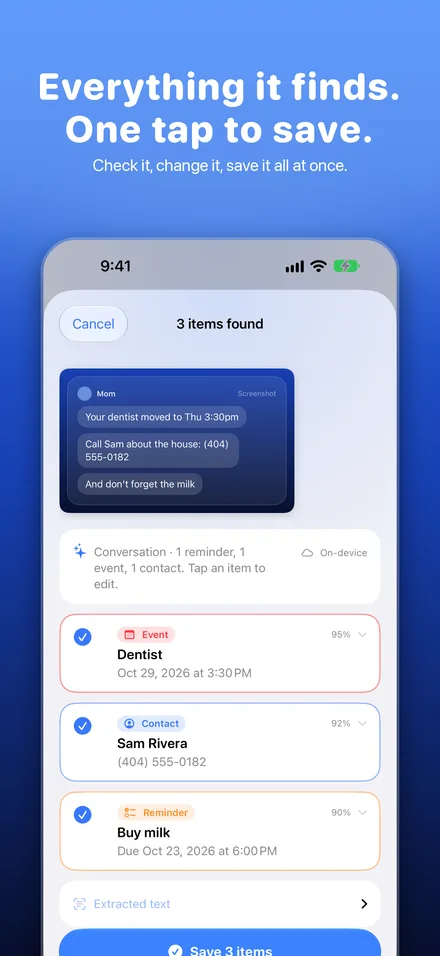
| Remember what the screenshot says (dentist appointment, milk, form due Monday) | Turn it into a reminder | Shotodo does this in one tap, no typing |
How do you cover, replace, or highlight text on a screenshot on iPhone?
Open Markup from the screenshot preview
Open the screenshot in Photos or tap the thumbnail that appears right after you take it, then tap the Markup icon (the pen tip in a circle) at the top of the screen. On iOS 26 or later, the same tools are available from the share sheet if you have already saved it. You do not need a third-party app for any of this.
Cover text with a matching rectangle or the pen tool
To hide text you do not want anyone to see, tap the plus button, choose Add Rectangle, and drag it over the words. Tap the shape, then the color swatch, and pick a color that matches the background so the covered text disappears into the screenshot. For smaller bits, like a price or a single line in a group chat, the pen tool set to a thick stroke and a matching color works faster than fiddling with shape handles. To replace text instead of hiding it, cover the original, then tap the plus button, choose Text, drag the box into place, and type over it.
Double-tap the text box to change the font, size, or color so it blends with the rest of the screenshot. This is the fastest way to fix a typo in a screenshot before you send it back to the family chat, and it saves a lot of typing compared with retaking and re-cropping the whole thing. Once you have done it twice, the whole edit takes under a minute, and you never leave the Photos app.
How to highlight text on a screenshot with the highlighter pen
Tap the highlighter tool in the Markup toolbar, pick a color, and drag across the words you want to stand out. Set the stroke width thicker for headlines, thinner for a line in a school email. If you overshoot, tap the undo arrow or the eraser and try again. When it looks right, tap Done and the marked-up screenshot saves straight to your library, ready to share.
If the screenshot is really a reminder, like a dentist appointment or a form due Monday, covering and highlighting does not stop you from forgetting it. That is the job Shotodo takes over: screenshot it, one tap, it's done.
How do you edit or highlight text on a screenshot on Android and Samsung?
Samsung Gallery editor: pen, text, and sticker tools
Open the screenshot in Samsung's Gallery app and tap the pencil icon to enter the editor. The pen tool lets you draw over text you want to hide, and the text tool adds a label on top. To replace text rather than cover it, match the sticker color to the background, then type the corrected wording over the original. Tap Save when you're done.
Google Photos Markup on other Android phones
On most other Android phones, open the screenshot in Google Photos, tap Edit, then Markup. You get a pen, a highlighter, and a text tool for adding or covering words. The steps are nearly identical whether the screenshot came from a group chat or a school email.
Highlighting text on a screenshot on Android
Pick the highlighter in either editor and drag it across the line that matters, like the party time or the due date. If you'd rather turn that captured line into a reminder instead of marking it up, Shotodo on iPhone does that in one tap (about Shotodo); iPhone users can also copy text straight from photos using Live Text (Apple Support).
How do you copy text from a screenshot on Mac using Live Text?
Copy text directly from the image in Preview or Photos
Open the screenshot in Preview or the Photos app. Hover your cursor over any text in the image and it highlights, just like text on a page. Click and drag to select the words you need, then press Command-C to copy. If the highlight does not appear, right-click the image and choose "Copy Text" instead.
Paste into Notes, Reminders, or a document
Click where you want the text to go and press Command-V. Paste a party time into Notes, a due date into Reminders, or a phone number straight into a draft email. Blurry screenshots copy less reliably, so zoom in and recapture the section if the pasted text looks wrong.
The same idea works on your iPhone too, but typing follow-ups on a Mac keyboard is faster. If your screenshots are mostly reminders rather than text to retype, Shotodo turns them into tasks in one tap, and its handling of your data is covered in the Shotodo privacy policy.
How do you get text from a screenshot on Android using Google Lens?
Lens copy steps
Open the screenshot in Google Photos and tap the Lens button, or open the Lens app directly. Lens highlights the words it spots on the image. Tap the text you want, or use "Select all," then choose "Copy text." Paste it into a note, a text message, or your calendar invite.
Sending the text to another device
If the text needs to end up on your laptop, tap "Copy to computer" in Lens and pick a signed-in Chromebook or PC with Chrome. It pastes there after a confirmation step, so you skip emailing the screenshot to yourself.
The same idea works in reverse for reminders: if the screenshot is an appointment or a school form due date, Shotodo turns it into a reminder or calendar entry in one tap, no typing (pricing).
How do you move screenshot text into a text editor?
Phone route: copy, paste, clean up
On iPhone, open the screenshot in Photos, long-press the text, tap Select All, then Copy, and paste into Notes, Reminders, or Mail. On Android, Google Lens does the same job: point it at the screenshot, choose Text, and copy (Google Support). Expect a little cleanup, since phone numbers and dates sometimes paste with stray spaces.
Desktop route: Preview, Photos, or a dedicated tool
On Mac, Live Text works inside Preview: hover over the text until it highlights, select, and copy into Pages or Word. On Windows, the Photos app offers a similar copy-from-image option. If you do this all day, a dedicated tool earns its keep with batch handling, but for a school form or a party invite, the built-ins are enough.
When the text is a task, not a document
Copying into a document still leaves you the job of typing the reminder. If the screenshot is "dentist Monday 9am," skip the paste and turn it straight into a reminder instead.
How do you screenshot text messages on Samsung without losing the part you need?
Scrolling capture for long threads
A single screenshot only grabs what fits on the screen, and long group chats spill past that. On Samsung, take your first screenshot, then tap the scroll capture icon (the double down arrow) in the toolbar that appears. Tap it again to keep pulling in more of the thread until the whole conversation is in one tall image. Tap the checkmark to save.
Crop before you annotate or copy
Open the screenshot in Gallery and tap Edit, then Crop, and trim everything except the messages you actually need: the party time, the milk request, the dentist reminder. A tight crop makes the part that matters easy to spot later. From there you can highlight it, or copy the text straight from the image.
What if the screenshot is a reminder you cannot afford to forget?
Turning a screenshot into a reminder or event on iPhone
Most screenshots in a parent's phone are not text to retype. They are a dentist appointment, a party at 2 on Saturday, a form due Monday. Editing the image does nothing about the risk that you forget it. The fix is to turn the picture into a reminder or calendar event instead, so it shows up where you already look: your calendar and Reminders.
How Shotodo and similar apps compare on this job
Shotodo does this in one tap: screenshot it, and it becomes the reminder, event, or contact with no typing. SnapLater - Screenshot as todo works the same direct way, turning a screenshot into a to-do. TaskLoop Planner and FamPlanIt - Family Planner sit adjacent, broader planners where screenshots are one input among many. If your day already lives in Apple's stock apps and you refuse to maintain a system, the one-tap route fits; if you want a full family planner, the adjacent tools may suit better. The same principle applies on other phones: Samsung's own tools can capture and mark up a long screenshot, but marking up an image still leaves the appointment trapped in it.
Which method should you use for which job?
Match the job to the method. Covering a price or a name before you share a screenshot? Use Markup on iPhone or any Android editor. Replacing or highlighting text?
Same tools, different pen. Turning pixels into characters you can copy? Live Text on Mac, Google Lens on Android.
If the screenshot is really a task, like the dentist appointment or the milk request, skip retyping altogether. Shotodo turns the screenshot into a reminder, event or contact in one tap, no typing.
FAQ
Can I edit text in a screenshot without an app?
Yes. On iPhone, the built-in Markup tools let you cover, replace, or highlight text right from the Photos app or the screenshot preview. On Samsung, the Gallery editor has pen and text tools, and other Android phones can use Markup inside Google Photos. No third-party app is needed for any of these edits.
How do I copy text from a screenshot on iPhone and paste it into Notes?
Open the screenshot in Photos, long-press the text until it highlights, tap Select All, then Copy. Open Notes, tap where you want the words, and paste. You can also use Live Text in Preview on your Mac and paste into Notes there, which is faster if you are typing a follow-up.
Why is the text wrong when I copy it from a screenshot?
Blurry or low-resolution screenshots copy less reliably, and phone numbers and dates often pick up stray spaces. Zoom in and recapture the section if the pasted text looks wrong, then clean up spacing manually. If errors keep appearing, retake the screenshot with the text filling more of the frame before copying again.
Is there a free way to turn a screenshot into editable text?
Yes. Live Text is built into iPhone and Mac at no cost, and Google Lens is free on Android. Both let you select the words in an image and copy them into Notes, Reminders, Mail, or any text editor. For occasional screenshots like a school form or party invite, these built-ins are enough.
How do I blur out names in a screenshot before sharing it?
Use a shape instead of a blur. On iPhone, tap the plus button in Markup, choose Add Rectangle, drag it over the name, and set the color to match the background. The pen tool with a thick stroke works for smaller bits. On Android, use the pen tool in the Gallery editor or Google Photos Markup.
Recap
- Editing text on a screenshot means either annotating the image with Markup tools or converting the pixels into copyable characters with Live Text or Google Lens.
- iPhone Markup lets you cover, replace, and highlight text using shapes, the pen tool, and text boxes without any third-party app.
- Samsung's Gallery editor and Google Photos Markup handle the same cover-and-highlight jobs on Android, while Google Lens copies text out of the image.
- Live Text on Mac works inside Preview and Photos: hover to highlight the words in a screenshot, select, and paste into Notes, Reminders, or Mail.
- When a screenshot is really a reminder, like a dentist appointment, turning it into a task with Shotodo beats retyping or annotating the image.
Written with help from AI and reviewed by Shotodo. Corrections go to [email protected].