 Shotodo
 By
Set it up once in about 15 minutes, and each week you just check off what you bought and re-check what you need again.
How do you set up a reusable grocery list in iPhone Reminders?
Open the Reminders app, tap Add List, name it Groceries, and pick a colour so it's easy to spot. That single list becomes your shopping grocery list for every week, and you never start from a blank page again.
The trick is to untick items instead of deleting them. Add milk, bread, eggs, bananas, and whatever else you buy every week as checklist items. At the shop, tick each one off as it goes in the trolley. When you get home, tap the three-dot menu and choose Show Completed, then untick everything in a few seconds.
Your list is now reset for next week, with every staple already on it. This is the whole point of a reusable list: the baseline never disappears, so "don't forget the milk" stops being something you retype every Sunday night. When something runs out midweek, add it straight to the list the moment you notice, and it's waiting there for the next trip.
To pin the list to the top of Reminders, swipe right on the list name and tap the pin icon, so Groceries is the first thing you see when you open the app. Apple's own guide to creating lists and reminders walks through these steps in more detail (Apple Support).
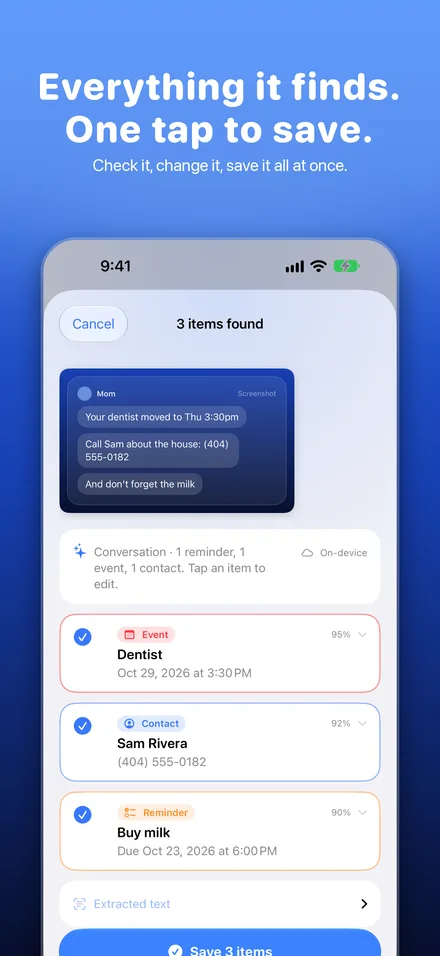
If a school email or group chat mentions something you need, screenshot it and Shotodo reads it, one tap and it's saved to your list. No more typing.
How should a grocery list be organized by store section to cut shopping time?
Split your list into produce, dairy, meat, pantry and frozen. That order matches how most stores are laid out, so you walk the aisles once instead of backtracking for the milk you forgot at the start. Frozen goes last so nothing thaws while you shop.
Sections within one list
In Reminders, open your grocery list, tap the three dots and choose "New Section." Create one for each store area and drag items under the right heading. Sections collapse, so you can hide produce once it's in the cart. Type an item and drag it into place, or screenshot the school email with the snack list and save it straight into the right section with Shotodo.
When separate lists per store make sense
If you shop at two or three places each week, one list per store beats one mega-list. You only see the Costco items at Costco, and whoever grabs the milk run sees just the dairy list.
How do you set recurring reminders for staples you buy every week?
Milk, bread, and school snacks don't need retyping every Sunday. In Reminders, type the item, tap the info (i) button, and turn on Repeat. Pick Daily, Weekly, or Custom, so "Milk" reappears every Monday without you touching it. Apple's own guide covers how to set repeating reminders on iPhone, including custom schedules like every second Tuesday.
Setting a repeat schedule on an item
Give each staple its own schedule. Milk might repeat weekly, while "Snacks for lunchboxes" repeats only during term time, which you can adjust in a few taps. When you tick the reminder off after shopping, it comes back on its next due date instead of disappearing.
Location-based reminders for 'when I'm at the store'
In that same info screen, toggle "Remind me at a location" and choose your grocery store. Now "Don't forget the milk" pings the moment you arrive, even if the repeat date slipped your mind. It works with Apple Reminders you already use, and if the reminder started life as a screenshot from a group chat, Shotodo saves you the typing before the repeat takes over.
How do you turn a recipe screenshot into grocery list items on iPhone?
The manual way: split view and typing
Open the recipe in one app, Reminders in split view beside it, and type each ingredient by hand. It works, but a week of meal planning means retyping the same staples over and over. That's the typing Shotodo exists to remove.
The screenshot way with Shotodo
Screenshot the recipe, the school-email snack list, or the store flyer, then share it to Shotodo. It reads the screenshot and saves the items straight into your list, so it's done in one tap instead of a dozen. One reader put it simply: "Handy little app, saves a lot of typing."
How the direct alternatives compare
SnapLater, Shotted, and SnapAction all work from screenshots too. Since details like price and supported lists change often, check each app's page before picking one.
| App | What it does |
|---|---|
| Shotodo | Screenshot it, items saved to your list in one tap |
| SnapLater | Screenshot-to-task app |
| Shotted | Screenshot-to-task app |
| SnapAction | Screenshot-to-task app |
Whichever you pick, the habit is the same: see it, screenshot it, get on with your day.
How do you share a grocery list with your household using iPhone Reminders?
Open your grocery list, tap the share button, and send an invitation by text or email. Once they accept, anyone in the family can add milk, forms, or dentist-appointment extras, and every tick shows up on everyone's phone right away. No more "did you get the dry cleaning?" texts from the school pickup line.
Inviting people to a shared list
Tap the list name at the top, choose Sharing, then add people from your contacts. You can let anyone on the list invite others too, which is handy when a babysitter needs to see it. Apple's own guide walks through sharing and collaborating on lists step by step: share a Reminders list.
What shared lists can and can't do
Everyone sees the same items and the same ticks in real time, so nobody buys double. What you can't do is mix in someone on Android through Reminders itself; they'd need another way in. If your spouse texts a party flyer or a team snack list, screenshot it with Shotodo, save it as a reminder on the shared list, and it's done.
How do you combine a meal planner and grocery list app with Reminders without duplicating lists?
The trick is picking one source of truth. Plan meals in one place, and let Reminders hold only the shopping list itself. If you write "Tuesday: pasta night" in two apps, one of them goes stale by Thursday and you stop trusting both.
One source of truth rule
Decide what each app is for and never blur it. The meal planner decides what you're eating this week. Reminders holds what you need to buy. When a recipe adds an ingredient, it goes straight onto the list, not into a second note about the meal. If a list item starts living in both places, delete the copy you'll forget to update.
A simple weekly loop: plan, list, shop, reset
Sunday, plan the week's dinners and add missing ingredients to your list. Through the week, screenshot anything that arrives late, a spouse texting "we're out of milk" or a school email about Friday's bake sale, and add it in one tap with Shotodo instead of typing it out. Shop from the list, tick things off, then reset: clear completed items and roll your recurring staples forward. Keep the loop to four steps so it survives a chaotic week, because a routine you can run in five minutes is the only one that lasts.
How do you manage a grocery list for one person versus a family?
Solo: keep it minimal
Shopping for yourself, one list in Reminders is enough. Keep staples on a recurring reminder (milk, eggs, bread) and add anything else as it runs out. Screenshot a recipe or a text about dinner plans, and Shotodo reads it and saves the items in one tap, so the list stays current with almost no typing.
Family: shared list plus an additions list
With a household, split the setup in two. One shared list everyone can see covers the weekly shop, organised by store section. A second "additions" list catches requests as they come in, from the group chat, a spouse's text, or a school email screenshot, and gets merged into the main list before you shop.
The difference is a rule for who adds what: anyone can add to the additions list, but one person merges it. That stops duplicate milk showing up three times. The same screenshot-to-list trick works here too, and similar apps such as SnapLater, Shotted and SnapAction take the same screenshot-first approach on the App Store, so pick whichever feels fastest to you.
What common Reminders grocery-list mistakes should you avoid?
Untick, don't delete
When you buy the milk, tick it off. Don't swipe and delete it. A reusable shopping grocery list only works if the staples stay on the list, ready to untick next week. Deleted items mean retyping them from scratch every time.
One list, not five
A list in Reminders, a note in the Notes app, a thread in the family group chat and a few items in your spouse's texts is how the dentist appointment milk run gets missed. Pick one shared list everyone can see, and retire the rest.
Clear the screenshot backlog
Party details, school emails, the team snack roster. If they sit in your photos, they never make it onto the list. Screenshot it, Shotodo reads it, one tap and it's saved, so nothing lives only in your camera roll.
FAQ
Can I delete the Reminders app on iPhone if I use another grocery list app?
You can't delete it outright, but you can remove it from your Home Screen and keep it in the App Library. Before ditching it, check that your replacement app handles shared lists and location alerts, since Reminders does both for free. Many people keep Reminders for household sharing while a screenshot-to-list app handles the typing.
Do shared Reminders lists work with someone who uses Android?
Not through Reminders itself. Sharing only works between Apple devices, so an Android spouse or roommate needs another route in, such as texting or a cross-platform list app. A common workaround: the Android person texts their requests, you screenshot the message, and it lands on the shared list without you retyping anything.
How do I find recipe screenshots I saved in my hidden iPhone photos folder?
Open the Photos app, go to Albums, scroll to the Utilities section, and tap Hidden. You'll need Face ID or your passcode to open it, and recipe screenshots live there alongside anything else you've hidden. Better habit: don't let them pile up. Share each one to your list app the moment you take it.
Is a meal planner and grocery list app better than just using Reminders?
It depends on how you plan. If you decide dinners on the fly, Reminders alone is enough. If you plan a week of meals, a dedicated planner keeps recipes and schedules in one place. The key rule either way is one source of truth: the planner decides what you're eating, and Reminders holds what you need to buy.
Can Reminders alert me when I arrive at the grocery store?
Yes. Open the item, tap the info (i) button, and toggle "Remind me at a location," then choose your store. The alert fires the moment you arrive, even if the due date slipped past. It pairs well with recurring staples: the repeat handles the schedule, and the location alert catches the trips in between.
Recap
- Create one Groceries list in Apple Reminders and untick completed items instead of deleting them, so your staples stay on the list permanently.
- Organise the list into store sections like produce, dairy, meat, pantry and frozen so you walk each aisle once.
- Use recurring reminders for weekly staples and location alerts so items ping when you arrive at the store.
- Share one list with your household in real time, and route requests through a single additions list to avoid duplicates.
- Screenshot recipes, school emails and texts into Shotodo to add items in one tap instead of retyping them.
This page began as an AI draft. Shotodo is responsible for it. Found a mistake? [email protected].