 Shotodo
 By
The short version
- Long-press any word in a screenshot and drag the handles to copy text with Live Text, available on iPhone XS and later running iOS 15 or newer.
- Tap the Live Text frame icon in the bottom-right corner of a photo to highlight and copy all text at once.
- If text won't highlight, raise exposure and brightness in Photos, crop to the text, or trace over faint letters with Markup's pen to boost contrast.
- Live Text handles typed text reliably but only picks up neat block-letter handwriting; cursive and angled photos usually fail.
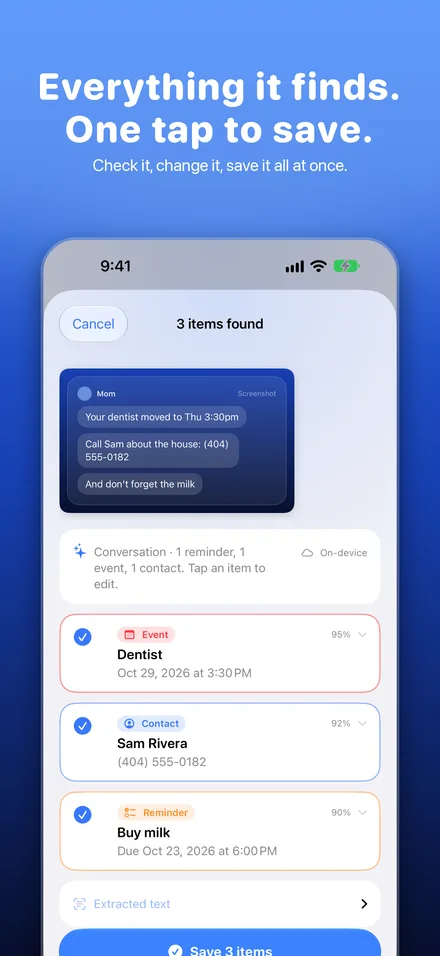
- Shotodo turns a screenshot into a reminder, event, or contact in one tap for $5.99/month or $39.99/year after a 7-day free trial.
How do I copy text from a screenshot on iPhone with Live Text?
Open the screenshot in Photos, then use one of two routes. Both rely on Live Text, which Apple supports on iPhones from XS/XR onward running iOS 15 or later, per Apple's Live Text support page.
Long-press method
Press and hold any word in the screenshot. A selection appears around it, with handles you can drag to cover everything you need. Tap Copy in the black popup bar, and the text is on your clipboard.
Live Text icon method
Look for the small frame icon in the bottom-right corner of the photo. Tap it once and every bit of writing in the screenshot gets highlighted. Tap Copy, or tap Copy All to grab everything in one go.
Copy All vs selecting
Selecting with handles works when you need one detail, like a Saturday 2pm party time. Copy All is faster when the whole screenshot matters, like a school email with a due date. Either way, the text lands in Notes, Messages, or Calendar like anything you typed yourself.
If you'd rather skip the pasting, Shotodo turns the screenshot itself into a reminder in one tap.
Which iPhone models and iOS versions support copying text from screenshots?
Live Text, the feature that lets you select and copy words straight from a screenshot, needs iOS 15 or later. It also depends on the chip inside your phone: it works on any iPhone with an A12 Bionic or newer. In practice, that means the iPhone XS and XR (2018) and everything released since. If your iPhone runs iOS 26, you're well covered.
How to check your iOS version
Open Settings, tap General, then tap About. Look at the iOS Version row near the top. If the number starts with 15 or higher, Live Text is on your phone.
To confirm your chip, check the Model Name on that same About screen. Anything from iPhone XS onward qualifies.
Once you know you're supported, the copy step is quick, and tools like Shotodo (https://shotodo.app/about/) build on it to turn what you copied into a reminder without typing.
Why can't my iPhone detect text in a screenshot?
Live Text usually fails for one of five reasons: the text is blurry, too small, written in an unusual font, snapped at an angle, or too close in color to the background. Handwriting is a common culprit too, especially on school forms and birthday cards.
Quick fixes to try first
Open the screenshot in Photos and tap Edit. Raising the exposure and brightness can make faint text readable, and Apple's own guidance on adjusting exposure and brightness in Photos covers exactly this.
If that doesn't work, zoom in before you long-press, or crop the screenshot so only the text remains. Cropping gives your iPhone a bigger, clearer target.
Still nothing? The text may be at an angle or low contrast, which the next section handles. And if the screenshot is something you'd rather not retype at all, Shotodo turns a screenshot into a reminder or event in one tap, no copying needed.
How do I see hidden or low-contrast text in a screenshot on iPhone?
Some screenshots refuse to cooperate: a dim photo of a school note, a white flyer with pale grey text, a photo of a form taken in shadow. Live Text often skips these. Fix the image first, then try again.
Adjust exposure in Photos
Open the screenshot in Photos and tap Edit. Drag the Exposure and Brightness sliders up until the text stands out from the background. Tap Done, then open the screenshot again and look for the Live Text icon in the corner.
Use Markup to darken text
If sliders alone don't do it, tap the Markup pen and trace over faint letters with a black or dark blue stroke. Tracing a phone number or a date takes seconds and gives the text enough contrast for your iPhone to pick it up. This works well for pale text on white backgrounds, like a printed permission slip photographed in good light, where the letters are technically visible but too light for the iPhone to treat them as text. A single pass with the pen usually changes that immediately. You don't need a steady hand; rough lines over the letters are enough, because you're only boosting contrast, not redrawing anything.
Retry Live Text after editing
Once the screenshot is edited and saved, tap and hold the text or tap the Live Text icon. Copy it as normal. If you'd rather skip the copy-paste routine and turn the screenshot straight into a reminder, event, or contact, that's what Shotodo does in one tap, and the pricing is at https://shotodo.app/pricing/.
How do I copy only part of the text from a screenshot?
Long-press the screenshot, then drag the handles at the corners of the highlighted text to shrink the selection down to just the lines you want, and tap Copy. A spouse's message might hold the party time and three other threads; grab only the line you need before pasting it into Reminders or Calendar.
When the handles grab the wrong words, lift your finger first, then tap and drag a single handle slowly to reposition it. If the highlight keeps snapping to the wrong block, zoom the screenshot slightly with two fingers before the long-press; the selection follows the larger text more reliably.
If the text still won't isolate cleanly, circle it with Markup's highlighter so it stands out, then try the long-press again (Apple's guide to Markup tools). Or skip the trimming entirely: Shotodo reads the screenshot and turns the whole thing into a reminder in one tap, no selecting required. Updates land regularly at https://shotodo.app/changelog/.
Can I copy handwritten text from a screenshot on iPhone?
Sometimes. Live Text can pick up neat handwriting, like a grocery list written in clear block letters, but it's unreliable on anything looser. Cursive, smudged pencil, or a photo taken at an angle usually comes back as gibberish or nothing at all.
Set your expectations: typed text copies reliably, handwriting is a best-effort bonus. If nothing shows up, try the Markup trick from the earlier section: open the screenshot in Markup, use the pen to darken the strokes, then try selecting again. Thicker, darker lines give your iPhone more to work with.
If it fails twice, stop fighting it. Type the two or three details you actually need, or let a tool like Shotodo turn the screenshot into a reminder instead.
What should I do after copying text from a screenshot?
Paste into Reminders, Calendar, or Contacts
Open the app that fits the screenshot: Reminders for "don't forget the milk," Calendar for the Saturday 2pm party, Contacts for a new number. Long-press the field, tap Paste, then set the date, time, or title yourself. Before you rely on this, check you're on a version that supports the copy step: Apple documents the current features and version checks at Apple's iOS 26 release notes.
The manual route works fine when you paste one or two things a week and don't mind typing a title. It slows down when the screenshots pile up in the meantime, because the copy is only half the job.
One-tap alternative: Shotodo
Shotodo skips the paste entirely. Screenshot it, tap once, and it becomes a reminder, event, or contact with no typing. It's $5.99/month or $39.99/year after a 7-day free trial, on iOS. If you'd rather not decide which app each screenshot belongs in, that one tap is the whole point.
How does Shotodo compare with other screenshot-to-task options?
What to compare on
Three things matter when a screenshot needs to become something you won't forget: how fast it happens, how much typing it takes, and whether the price is clear before you download.
| Shotodo | SnapLater | TaskLoop Planner | |
|---|---|---|---|
| Steps from screenshot to reminder | One tap | Not stated here | Not stated here |
| Typing required | None | Not stated here | Not stated here |
| Price shown up front | $5.99/month or $39.99 | Not stated here | Not stated here |
Judged honestly by the same criteria: Shotodo's strength is the one tap and no typing, which fits the parent whose hands are full. The honest limit is that it ships on iOS only, so it works only if your family calendar lives on an iPhone. SnapLater and TaskLoop Planner may suit you better if your needs differ; the table above only claims what we can verify about Shotodo.
FAQ
Does copying text from a screenshot work on every iPhone?
No. It needs iOS 15 or later and an A12 Bionic chip or newer, which means iPhone XS or XR from 2018 onward. Check Settings, then General, then About to see your iOS version and model name. If your phone predates the XS, the long-press simply won't highlight anything, and upgrading the software won't change that.
Why does my iPhone only pick up some of the words in a screenshot?
Live Text struggles with blurry text, small fonts, unusual typefaces, angles, low contrast, and handwriting. Open the screenshot in Photos, tap Edit, and raise exposure and brightness, or crop down to just the text. Zooming slightly before the long-press also helps. If some words still refuse to highlight, trace over them with Markup's pen to darken them.
Can I copy text straight from my Camera Roll without opening Photos first?
Yes. Live Text works anywhere an image appears on screen, including the Camera Roll grid, Messages, Safari, and the small preview that pops up when you take a screenshot. Long-press a word in the visible image and drag the handles, or tap the frame icon in the corner to highlight everything at once.
Is there a way to turn a screenshot into a reminder without copy and paste?
Yes. Shotodo reads the screenshot and turns it into a reminder, event, or contact in one tap, with no typing or pasting. It costs $5.99/month or $39.99/year after a 7-day free trial, and it runs on iOS only. The manual route, copying into Reminders or Calendar yourself, works fine if you only paste a couple of things a week.
Does dark mode or a dark screenshot make text harder to copy?
Usually not. Light text on a dark background is high contrast, which is exactly what Live Text handles well. The problem is the opposite: dark text on a dark background, or pale grey on white, where the letters nearly vanish into the background. If a dark screenshot fails, the fix is raising brightness in the Edit screen, not switching modes.
How this guide was made: drafted with AI help, published by Shotodo. See a mistake? Write to [email protected] and it gets fixed.