 Shotodo
 By
The short version
- Apple's free Reminders app handles recurring bill payment reminders with monthly repeat rules, second alerts, and shared lists.
- Calendar is better for seeing a whole month of due dates at a glance, while Reminders is better for bills with a completion step.
- Set manual-pay bill reminders two to three days before the due date and autopay reminders the morning after, to catch failed payments.
- Shotodo turns a screenshot of a bill into a dated reminder in one tap, removing the typing that makes people skip setting reminders.
- Shared household bill reminders fail when spouses run two separate systems, so pick whichever app the household already uses and share the list.
How do I set up recurring bill payment reminders on iPhone?
Apple's Reminders app handles recurring bill payment reminders without any extra app. You set the bill once, choose the repeat rule, and it fires every month until you change it. Here is the full setup, start to finish.
Create the reminder and set the repeat rule
Open Reminders, tap New Reminder, and name it after the bill, like "Electric bill." Tap the alarm icon, set the date to your due date, and pick a time you'll actually see it, such as 9 a.m. Then tap Repeat and choose Monthly (or Every Month on the same day). Apple's own guide walks through setting dates, times, and repeat rules in Reminders. If the due date drifts, edit the first reminder and the repeat continues from the new date.
Add a second alert a few days before the due date
One alert on the due date is often too late, especially for bills that autopay from an account you rarely check. Tap the reminder, tap Alert, then add a second notification three to five days earlier. You get a heads-up while there's still time to move money or call the company.
Group bills into one list
Create a list called Bills and add every recurring reminder there. One place, one glance, no digging. If a bill arrives as a screenshot in your photos, Shotodo turns it into a reminder in one tap, no typing (https://shotodo.app/).
Is iOS Reminders or Calendar better for bill due dates?
Both apps handle recurring bill payment reminders, but they answer different questions. Reminders asks "did you pay it?" Calendar asks "when is it due?" Pick based on which question keeps you up at night.
| Reminders | Calendar | |
|---|---|---|
| Recurring alerts | Yes, with snooze | Yes |
| Check off when paid | Yes | No |
| See the whole month | No | Yes |
| Attach notes/amount | Notes field | Event details |
| Reschedule if late | Snooze or edit | Edit the event |
When Calendar wins
Calendar wins when bills cluster around paydays and you need to see the damage at a glance. Block out 30 minutes on the 1st and 15th, title each block "Bills," and every recurring due date sits in one visible chunk. If a spouse checks the shared family calendar, they see it too. Calendar is also better for bills that must be paid at a specific time, like a same-day transfer.
When Reminders wins
Reminders wins for anything with a completion step. A bill reminder you can't check off just becomes noise; one you can tick gives you that "it's done" feeling. Reminders also snoozes cleanly when the money isn't there yet, and recurring alerts fire again next cycle. If typing the details is the friction, Shotodo turns a screenshot of the bill into a dated reminder in one tap (about).
Does Google offer bill payment reminders, and can they sync to iPhone?
Yes. Google Calendar handles recurring bill due dates well, and they show up on your iPhone if you sync your Google account.
Setting the reminder in Google Calendar
Open Google Calendar on the web or in its iPhone app, create an event called "Mortgage due" or "Electric bill," and set it to repeat monthly. Google Assistant can also add reminders by voice: "Hey Google, remind me to pay the water bill on the 15th." If you already plan dinners and birthdays in Google Calendar, adding bills there keeps one family calendar instead of two.
Syncing to the iPhone Calendar app
On your iPhone, go to Settings, then Apps, then Calendar, then Accounts, and add your Google account with Calendar switched on. Your bill events then appear in the stock Calendar app alongside school pickups and dentist appointments. The catch: Google reminders land as notifications from Google's apps, not in Apple's Reminders, so your lists stay split. Apple only lets you share Reminders lists with other Apple accounts, not merge them with Google's (Apple Support). If you screenshot bills from email anyway, Shotodo turns one into a reminder without typing the due date twice.
What is the best iPhone app for bill payment reminders with multiple bills?
Match the tool to your situation, not to a feature list.
One or two bills from a single bank app
If your mortgage and card both live in one banking app, skip a new download. Set a repeating reminder in Apple Reminders with the amount in the title and the due date as the alert. Two bills do not need infrastructure.
A dozen bills with different due dates
This is where stock Reminders starts to strain, because you are retyping each bill by hand and hoping you caught the right date. The honest answer for most parents: the tool that removes the retyping wins, because a reminder you never set is worth nothing. That is the case for a third-party app built around the screenshot you already took. With Shotodo, you screenshot the bill, tap once, and it becomes a reminder with the due date attached, no typing.
The same one-tap flow works for the dentist appointment in a school email or the Saturday party buried in the group chat, so bill reminders live beside everything else instead of in a separate app you have to maintain. Google Calendar is the third option, and it fits if your household already runs on it and syncs to your iPhone. The test is simple: whichever tool you will actually open when the water bill lands in your inbox is the best one. Shotodo's privacy policy is at https://shotodo.app/privacy/ if you want to check how your screenshots are handled.
Shared household bills with a spouse
Apple Reminders and Google Calendar both support shared lists or calendars, so pick whichever your spouse already uses and invite them. The failure mode is two systems, not the wrong app.
How do I turn a bill screenshot into a reminder with a due date?
Screenshot the bill, tap once
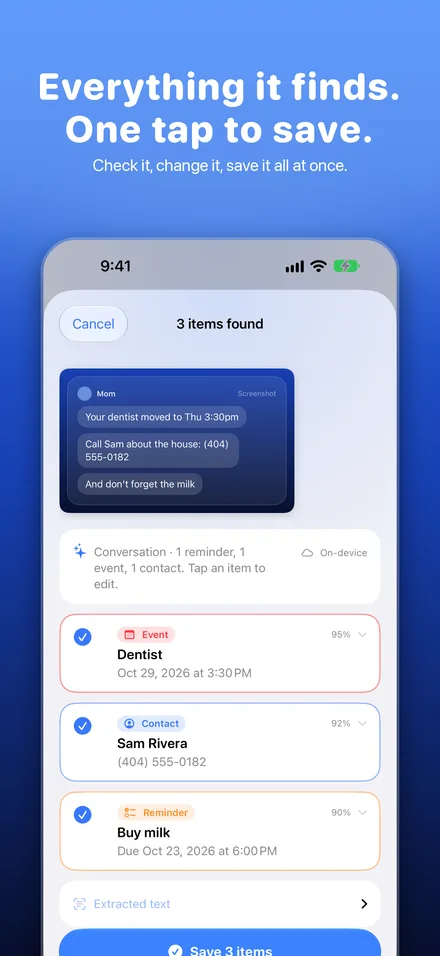
When the electric bill lands as an image in your email or the school payment notice shows up in a group chat, screenshot it the way you already do. Open Shotodo and it picks up the screenshot, reads the amount and due date, and offers a reminder without you typing a word. One tap and it's done, which is why one reviewer called it "handy" and said it "saves a lot of typing."
The same flow works for the dentist appointment card you photographed and the party invite buried in a text. If the date is visible in the image, Shotodo turns it into something your calendar can act on. New capture options ship regularly, and the changelog shows what was added most recently.
Where the reminder or event ends up
Shotodo sends the reminder into the Apple apps you already use, so the due date shows up in Reminders or Calendar alongside everything else on the family schedule. That matters because a reminder that lives in a separate app is a reminder you will miss. Google Calendar works the same way: events and reminders you create there sync to the iPhone's Calendar app, per Google's Calendar Help documentation.
How far in advance should a bill payment reminder fire?
The short answer: two days before the due date for anything you pay by hand, and one day after for anything on autopay.
Autopay bills
If the amount leaves your account automatically, the reminder is really a "check it went through" nudge. Set it for the morning after the due date. If the payment failed, you still have days to fix it before late fees. One tap on the reminder to mark it done and move on.
Bills you pay manually
Fire the reminder two to three days ahead. That gives you time to pay from your phone even if the first attempt happens while you're in the school pickup line. If a bill needs a bank transfer or a check, add a day.
Annual and irregular bills
Things like car registration or the water bill that shows up quarterly are the ones that actually get forgotten. Set the reminder a week out, since these often come from a website you only visit once a year and you may need to dig out login details. Shotodo works well here: screenshot the bill or confirmation email, and it becomes a dated reminder without typing. It's $5.99 a month or $39.99 a year on iOS, and the same one-tap flow works for dentist appointments and school forms too.
How do I organize bill reminders alongside the rest of my iPhone apps?
Pin the bills list and add a widget
In Reminders, swipe right on your bills list and tap the pin icon so it stays at the top no matter how many lists you add. Then long-press your home screen, tap the plus button, and add a Reminders widget showing just that list. Put it on the first home screen page or next to your calendar widget, so the water bill is staring at you before you've opened a single app.
Keep capture friction low
The system only survives a busy week if adding a reminder takes seconds. Screenshot the bill, then let Shotodo turn it into a reminder with the due date already filled in, one tap, no typing. If capture is easy, the widget and pinned list stay accurate without you ever sitting down to "update the bills."
FAQ
Can I get a bill payment reminder without typing the amount and due date myself?
Yes. Screenshot the bill and let Shotodo handle the rest: it picks up the image, reads the amount and due date, and creates a reminder in one tap. You never retype anything. The same flow works for dentist appointments and school forms, so all your dated obligations land in Reminders or Calendar without manual entry.
Why didn't my iPhone remind me about a bill even though I set a reminder?
The usual culprits: the alert time was set but the repeat rule wasn't, so it fired once and never again. Check that the reminder has both a date and a time, and that Repeat is set to Monthly. Also confirm notifications for Reminders are enabled in Settings, since a silenced app means a silent alert.
Can my spouse and I share the same bill reminders on two iPhones?
Yes. Apple Reminders supports shared lists, so create one Bills list and invite your spouse to it. Both of you see every due date and can check items off. The catch: sharing only works between Apple accounts, so Google Calendar users cannot merge in. The real failure mode isn't the app choice, it's running two separate systems that never sync.
Do bill payment reminders work if the bill is on autopay?
Yes, and they serve a different purpose: confirming the payment actually went through. Set the reminder for the morning after the due date, then check the amount left your account. If the payment failed, you still have days to fix it before late fees hit. One tap marks the reminder done and you move on.
Is there a free way to set bill payment reminders on iPhone?
Yes. Apple's built-in Reminders app is free and handles recurring due dates, second alerts, and shared lists. Google Calendar is also free and syncs to your iPhone if your household already runs on it. Shotodo costs $5.99 a month or $39.99 a year, and its value is removing the typing, not the reminders themselves.
How this guide was made: drafted with AI help, published by Shotodo. See a mistake? Write to [email protected] and it gets fixed.