 Shotodo
 By
This guide walks through each platform step by step, so the party time or the form due Monday is impossible to miss.
How do you highlight text in a screenshot on iPhone?
You already have the tool: Markup, built into every iPhone screenshot. It takes about three taps and no new app.
Using Markup in the Photos app
Open the screenshot in Photos, tap Edit, then the Markup pen icon. Pick the highlighter, choose a color, and drag it over the text you want to stand out. Tap Done and the marked-up version replaces the original.
Using the highlighter in a screenshot you just took
Take a screenshot, then tap the thumbnail that appears in the bottom-left corner. Markup opens straight away, which is faster when you are mid-conversation in a group chat. Highlight the party time or the form deadline, tap Done, and save.
Keeping the highlight behind the text, not over it
The trick most people miss: the default highlighter sits on top of the words and makes them harder to read. Apple's Markup lets you change the opacity of the tool, so drop it to around 50 percent and the text stays legible underneath, as covered in Apple's guide to Markup on iPhone. Tap the color circle, pick your highlighter, and adjust the opacity slider before you draw. Thicker is not better either: one medium stroke over a line of text reads better than three passes.
If the highlight covers the words completely, undo it, lower the opacity, and draw again. This one adjustment is the difference between a screenshot you can read at a glance in the school pickup line and one you have to squint at. It also matters if you hand the screenshot to another tool later, like Shotodo, which turns a screenshot into a reminder with one tap, because readable text means the right detail ends up in the reminder.
How do you highlight text in a screenshot on Android?
Most Android phones already have what you need, either in Google Photos or the gallery app that shipped with the phone.
Google Photos markup tool
- Open the screenshot in Google Photos.
- Tap Edit, then swipe to Markup (on some phones it sits under More).
- Pick the highlighter, choose a color, and drag your finger across the text you want to stand out.
- Tap Done to save. The marked-up version saves as a new image, so the original stays clean.
Samsung Galaxy screenshot editor
On a Galaxy, you can skip Photos entirely. Right after you take a screenshot, tap the toolbar that appears at the bottom of the screen, then tap the pencil or Edit icon. Choose the highlighter, draw over the text, and save. Samsung also lets you crop before you save, which is handy when the screenshot includes a whole group chat and you only need the dinner plan.
Once it's highlighted, don't let it die in your camera roll. Apps like Shotodo turn a screenshot into a reminder with one tap, so Saturday at 2 actually lands in your calendar.
How do you highlight text in a screenshot on Windows 10 and 11?
Snipping Tool highlighter
Take your snip with Snipping Tool (Win+Shift+S), then click the highlighter icon in the toolbar that appears. Drag over the text you want to mark, and Windows lays down a translucent yellow bar you can still read through. If Windows 10 gave you Snip & Sketch instead, the highlighter works the same way in its toolbar. Hit save or copy when you're done, and the marked-up image is ready to paste into a message.
Paint when you need a thicker marker
Snipping Tool's highlighter has one thickness. For a bolder mark, open the screenshot in Paint, pick the pencil or brush, choose a bright color, and drag across the text. Then send it where the task lives: if that's your phone, Shotodo turns the screenshot into a reminder so the dentist appointment doesn't sit in your camera roll.
How do you highlight text in a screenshot on Mac?
Take the screenshot first with Shift-Command-5 (or Shift-Command-3 for the whole screen), then open it in Preview, which is the default on a Mac.
Preview markup toolbar
Click the pencil-tip icon in the toolbar, or go to View > Show Markup Toolbar. You get a highlighter, shapes, an arrow, and a text box. Pick the highlighter, choose a color from the dropdown next to it, and drag over the line you want to stand out. For a party time buried in a long group chat, the arrow plus a highlight on "Saturday at 2" takes about five seconds.
Highlighting behind vs. over text
Preview's highlighter sits over the text, so heavy strokes can make it harder to read. Use a light yellow at low thickness, or draw a rectangle shape with a colored border instead of filling anything in. If the text is dark on a dark background, switch to the text box tool and retype the key detail in black on a yellow box. That retyping habit is the same idea behind Shotodo, which turns a screenshot into a reminder without the typing — see Shotodo pricing.
Which highlight colors and thicknesses keep screenshot text readable?
A highlight you can't read the text through is worse than no highlight at all. The fix is usually opacity, not a different color: aim for 30-50% so the words stay visible underneath.
Color choices by background
| Screenshot background | Best highlight | Skip |
|---|---|---|
| White (email, notes) | Yellow or green | Red |
| Light gray (iMessage bubbles) | Green or blue | Yellow at full opacity |
| Dark mode (black background) | Blue or purple | Red over dark text |
| Photos (flyers, forms) | Yellow at 30-40% opacity | Green over green scenery |
Thickness and opacity rules of thumb
Use a 3-6pt stroke with the Markup pen: thick enough to see in a group chat thumbnail, thin enough not to swallow the words. On a full-screen screenshot, 6pt; on a cropped line of text, 3pt. If the highlight hides the text, drop opacity before you drop the color.
What to do when the screenshot is already blurry or compressed
Blurry text plus a highlight is unreadable. Crop to just the line you need first, then highlight, so the stroke covers less area. If the screenshot is too compressed to read, take a new one rather than marking up a fuzzy one, and check the changelog for the latest Markup fixes before you give up.
Can you highlight text in a screenshot without downloading an app?
Yes. Every major platform has a built-in editor that covers it, so for a one-off markup you never need to install anything.
Built-in tools by platform
- iPhone: Open the screenshot in Photos, tap Edit, then the Markup pen icon, and draw over the text with the highlighter.
- Android: Google Photos has a Markup tool under Edit; Google documents it on their photo editing support page.
- Windows: Snipping Tool lets you draw with a highlighter pen right after you capture.
- Mac: Open the screenshot in Preview and use the highlight tool in the Markup toolbar.
When a dedicated app earns its space
Built-in editors stop at the drawing. If your screenshots are reminders, like a school form due Monday or a party Saturday at 2, an app such as Shotodo turns the screenshot itself into a reminder, event, or contact with one tap and no typing. Highlight in the built-in editor when you need to show someone else; use a dedicated app when you need yourself to actually do the thing.
How do you highlight only part of the text in a screenshot?
Crop, then highlight
If the screenshot is a long group chat or a school email, crop it before you mark anything. In the Photos editor, tap the crop tool and pull the corners in until only the message you care about is left. A tighter screenshot means your highlight sits on the right line, and nobody squinting at your text has to guess which part you meant.
Drawing a box or arrow instead of a swipe
A full swipe of the marker can bury the words you wanted to point at. Instead, draw a rough rectangle or circle around just the phrase, like "Saturday at 2." A thin arrow works too. Use the semi-transparent marker rather than the solid pen so the text underneath stays readable, and keep the line thickness low for small text. One shape around a few words beats a yellow stripe across the whole screen.
How do you remove text from a screenshot before sharing it?
Covering vs. blurring
Covering means drawing a solid shape over the text in the same markup editor you used for highlighting. On iPhone, tap the Markup pen, pick the color picker, match the background, and scribble over the name or number. On Samsung Galaxy phones, the built-in photo editor includes a blur option; Samsung's support pages walk through it: Samsung's guide to editing photos. Covering works everywhere; blur depends on the app.
Why a solid box beats a translucent one for hiding text
A translucent highlight still shows the letters underneath, which is fine for emphasis and useless for privacy. A solid, fully opaque box hides the text completely, even if someone zooms in or brightens the image. Before sharing a screenshot with the school group or a friend's party details, zoom in on your markup and check nothing peeks out around the edges of your box.
You highlighted it. Now what? Turning a marked-up screenshot into a reminder
From highlight to reminder or event
A highlight is a note to your future self. If the screenshot just sits in Photos, the milk doesn't get bought and the party at 2 on Saturday still surprises you. The last step is turning that yellow mark into something your calendar or Reminders will actually surface at the right moment.
Shotodo alongside the built-in tools: same criteria, honest trade-offs
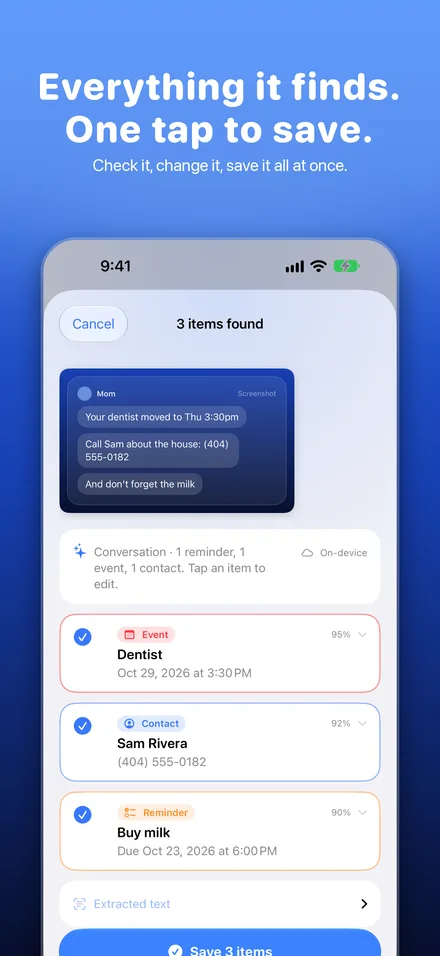
Judged by the same test as the markup tools above, Shotodo skips the retyping step entirely: you screenshot it, then Shotodo turns that screenshot into the reminder, event or contact in one tap. It ships on iOS for parents running the family calendar on an iPhone with iOS 26 or later.
The honest trade-offs: it is iPhone-only, so the Android, Windows and Mac instructions earlier in this article are still your path there. And where Markup leaves the highlight in the image so you can share the marked-up screenshot with your spouse, Shotodo's output is the reminder itself, not a picture. One reviewer put it simply: "Handy little app, saves a lot of typing."
FAQ
How do I highlight a screenshot on my iPhone without an app?
You don't need one. Open the screenshot in Photos, tap Edit, then the Markup pen icon, and pick the highlighter. If you just took the screenshot, tap the thumbnail in the bottom-left corner and Markup opens straight away. Draw over the text, tap Done, and the marked-up version saves to your library.
Why does my highlight cover the text in a screenshot, and how do I fix it?
The default highlighter sits at full opacity on top of the words. Tap the color circle, drop the opacity slider to around 50 percent, and draw again. Use one medium stroke rather than three passes, and undo any stroke that swallows the text. If it still hides the words, lower the opacity further before redrawing.
Can I highlight text in a screenshot and add it straight to my calendar?
Not with the built-in editors; they stop at the drawing. Shotodo takes the next step: screenshot it, then one tap turns the image into a reminder, event, or contact with no retyping. It is iPhone-only, requiring iOS 26 or later, so Android, Windows, and Mac users should highlight with their built-in tools.
What is the best highlight color to use on a screenshot?
Yellow or green on white backgrounds like email and notes. Green or blue on light gray iMessage bubbles, since yellow at full opacity washes the text out. Blue or purple in dark mode, and yellow at 30 to 40 percent opacity on photos or flyers. Skip red over dark text entirely.
How do I blur or hide part of a screenshot before sending it in the family group chat?
Draw a solid, fully opaque box over the text using the markup editor, matching the background color with the color picker. A translucent highlight still shows the letters underneath, which is useless for privacy. Samsung's built-in editor also offers a blur option. Zoom in afterward and check nothing peeks out around the edges.
Recap
- Every major platform has a built-in editor for highlighting screenshots: Markup on iPhone, Google Photos or the Galaxy editor on Android, Snipping Tool on Windows, and Preview on Mac.
- Drop the highlighter opacity to 30-50 percent so the text stays readable underneath the highlight.
- Use yellow or green on white backgrounds, green or blue on light gray chat bubbles, and blue or purple in dark mode; skip red over dark text.
- Crop the screenshot to the relevant line before highlighting, and draw a box or arrow instead of a full swipe when pointing at a short phrase.
- To hide text before sharing, draw a solid, fully opaque box rather than a translucent highlight, which still shows letters underneath.
Written with help from AI and reviewed by Shotodo. Corrections go to [email protected].