 Shotodo
 By
This guide shows you which family calendar app android and iphone setups hold up, and gives you a two-minute test to prove sync works before you commit your family's schedule to it.
Quick answers
- Google Calendar is the safest free shared calendar for a mixed Android-and-iPhone household because sharing is documented and edits sync between accounts.
- Run the same-event edit test on both phones before committing: create an event on one, edit it on the other, and confirm the change arrives back within a couple of minutes.
- If a partner's event never appears on your iPhone, the event was usually saved to a local or default calendar instead of the shared one.
- Google Calendar handles events but has no shared to-do list, chores, or shopping lists, so dedicated family planner apps like FamPlanIt fill that gap.
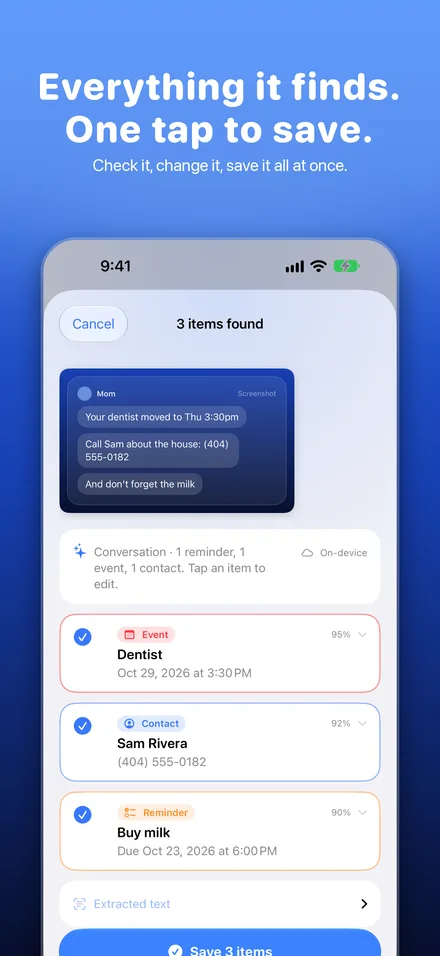
- Shotodo turns a screenshot of a school email or group-chat plan into a calendar event on iPhone, but it has no Android version and doesn't replace a shared calendar.
Which family calendar apps work on both Android and iPhone?
An Android parent and an iPhone parent can share the same family calendar using Google Calendar, a dedicated planner like FamPlanIt, or Apple Calendar paired with a shared iCloud login. The catch is not installation, it's what happens when you both edit the same event, which the next section covers.
The short list for a mixed Android-and-iPhone household
| App | Where it runs | How sharing works in one line |
|---|---|---|
| Google Calendar | Android and iPhone apps, plus web | You share the calendar with your partner's email and they see every event |
| FamPlanIt | Android and iPhone | Built for families, so everyone joins the same plan |
| Apple Calendar | iPhone only for full features | Android partner sees events through web or a shared Google feed, not the native app |
Google Calendar is the safest default because sharing is documented: you open the calendar's settings, enter the other parent's email address, and pick what they can see and change, per Google's guide to sharing your calendar with specific people.
One honest note about our own setup: Shotodo turns a screenshot into a reminder or calendar entry on your iPhone, but it is a capture tool, not a shared calendar, so your Android co-parent still needs one of the options above. More on what it does at https://shotodo.app/about/.
How does syncing actually work between Android and iPhone?
When you add a dentist appointment to a shared calendar, your phone sends the event to a server (Google's, Apple's, or the app maker's). Every other phone signed into that calendar checks in every few minutes, sees the new event, and downloads it. That check-in loop is why an edit usually appears on your partner's phone within a minute or two, but not instantly.
Lag and duplicates come from that same loop. If one phone is offline or the app checks in rarely, you get lag. If two devices create the same event before they've seen each other's copy, you get a duplicate.
Shared account vs shared calendar vs shared app
Shared account: both parents log into one Google or Apple account. Sync is instant because there's only one calendar, but you share everything, including your personal email and photos.
Shared calendar: each parent keeps their own account and shares one calendar, like Google Calendar's family calendar. Edits sync between accounts, and each person keeps private stuff separate. This is the setup most mixed households want.
Shared app: a family planner app such as FamPlanIt stores events in its own service. Sync depends on that company's servers, not Google or Apple.
Shotodo takes the shared-calendar route: a screenshot becomes a task or reminder on your existing calendar, and sync then behaves exactly like any other event you typed by hand. Details on what we store live at https://shotodo.app/privacy/.
How do you verify sync between an Android phone and an iPhone?
Don't trust the app description. Run the same-event edit test before you commit your family's schedule to any calendar.
The 5-minute same-event edit test
Put both phones side by side and create one test event, like "dentist appointment," on the iPhone. Wait two minutes, then open the same calendar on the Android phone. If it appears, edit it there: change the time to 4:00 and add "bring insurance card" to the notes. Now check the iPhone.
This is the part that matters, because seeing the event is easy; seeing your partner's edit arrive back on your phone is what tells you the calendar is genuinely two-way. If both phones show the 4:00 time and the note within a couple of minutes, sync works. If the edit shows up only after you close and reopen the app, it still works, just slower, and that's worth knowing before a busy Tuesday.
What to do if the edit never shows up
First, confirm both phones are editing the same calendar, not a local one. On iPhone, Apple explains how to check which calendars you're sharing and subscribing to in its guide to sharing calendars. Second, check that the event lives in the shared family calendar, not the phone's default. Once the test passes, screenshot-to-task apps like Shotodo can drop new events straight into that verified calendar.
Is Google Calendar the best free family calendar app for iPhone and Android?
For most households, yes. Google Calendar is free, works on both phones, and syncs in seconds: when an Android parent adds the dentist appointment, it appears on the iPhone parent's phone within moments, because both apps read from the same shared calendar. Create one "Family" calendar, share it with your partner, and every event you add shows up for both of you.
Where Google Calendar falls short for families
It handles events well, but it is not a family hub. There is no shared to-do list, no chore assignments, and no way to see who is free at a glance beyond color-coding you set up yourself. If you need shopping lists and tasks alongside the calendar, a dedicated family planner app like FamPlanIt may fit better.
It also assumes someone types the event in. A school email or a text about Saturday's game still has to be manually entered. That is the gap Shotodo (https://shotodo.app/) fills: screenshot the message, and it becomes a calendar event or reminder without typing. Google Calendar remains the free backbone; it just does not capture the plans buried in your messages.
What about dedicated family planner apps like FamPlanIt?
A shared calendar answers "when is the dentist appointment?" A dedicated family planner answers "who's taking her, and did we pay for it?" If your family's needs stop at shared events, adding a planner just means two apps to check. It earns its spot when you need chores, shopping lists, and per-kid responsibilities living next to the calendar.
FamPlanIt - Family Planner is one such option, built around a shared family view rather than a solo to-do list. It's available for Android and iPhone, and current pricing shows up on its Google Play and App Store listings. Check the store listing on your phone before committing, since features and plans can differ by platform.
Honest limitation: FamPlanIt doesn't turn a screenshot of a school email into a calendar entry. For that step, Shotodo handles screenshot-to-reminder on iPhone, and we track what's fixed in each release at shotodo.app/changelog.
How do you get school emails and group-chat plans onto the family calendar without typing?
The fastest route is a screenshot. Take a picture of the dentist appointment email or the "practice moved to 4:30" text, and Shotodo turns it into a reminder or calendar event you can save straight to your calendar. No retyping the date, no switching apps mid-school-run. It's built for iPhone and available on the App Store — check the Shotodo listing on Apple's App Store for the current iOS requirement and pricing before you download.
Where Shotodo fits in a mixed household, and where it doesn't
If you run the family calendar on your iPhone and your partner uses Android, Shotodo sits on your side: you screenshot, it's done, and the event lands in whatever shared calendar your family already uses, like Google Calendar. That's the honest picture of how it fits — it doesn't replace your shared calendar, it feeds it.
Where it falls short: there's no Android version, so an Android co-parent can't screenshot into the same flow. They'd add events manually or through the calendar app itself. If both parents want the same shortcut, that's a real gap worth knowing before you commit.
Which setup should your family pick?
If both parents want one shared calendar and nothing else, Google Calendar is the simplest pick: free, works the same on Android and iPhone, and edits from either phone show up for everyone.
If you want a family planner with chores, shopping lists, or per-kid views, look at FamPlanIt and check that both phones can edit the same event before committing.
If your problem is getting plans out of school emails and group chats without typing, add Shotodo alongside your calendar: screenshot it, it's done. It turns a screenshot into a reminder or calendar entry, so "dentist appointment" in a text becomes something you won't forget.
If your partner already lives in Todoist, meet them there rather than forcing a switch.
Honest limitation: Shotodo handles the capture, not the shared family view. You still need a two-platform calendar underneath it. Pick the calendar first, then layer on whatever saves you typing.
FAQ
Can an Android and an iPhone share a calendar for free?
Yes. Google Calendar is free and runs on both phones: create one "Family" calendar, share it with your partner's email, and events added on either phone appear on both. Apple Calendar can also work, but only if the Android partner views events through the web or a shared feed rather than the native app.
Why doesn't my husband's calendar event show up on my iPhone?
Usually the event was saved to a local or default calendar instead of the shared one, so it never syncs. Check which calendar the event lives in on his phone, and confirm both of you are editing the same shared calendar. Also try closing and reopening the app, since slower sync can delay an edit by a couple of minutes.
Is there a family calendar app that also handles to-do lists and reminders?
Google Calendar handles events but has no shared to-do list or chores. For that, look at a dedicated family planner like FamPlanIt, which is built around a shared family view and runs on both Android and iPhone. Run the same-event edit test on both phones before committing, since sync quality varies between apps.
Does Shotodo work on Android?
No. Shotodo is iPhone only, so an Android co-parent can't use the screenshot-to-reminder flow. The practical setup in a mixed household: the iPhone parent screenshots school emails and group-chat plans into the shared calendar, while the Android partner adds events manually through the calendar app itself. That gap is worth knowing before you commit.
How do I add my kids' school schedule to a shared calendar?
Screenshot the school email or the text about the changed practice time, and Shotodo turns it into a reminder or calendar event you can save straight into your shared family calendar, with no retyping. If you'd rather do it manually, open the email, create an event in the shared calendar, and type the details in yourself.
An AI tool helped draft this page. Shotodo checked and published it. Spot an error? Tell [email protected].