 Shotodo
 By
Key takeaways
- The share sheet is the panel that appears when you tap the share button, and Shortcuts can appear inside it via the 'Show in Share Sheet' toggle.
- A shortcut only shows in the share sheet when the content you share matches its Accepted Types, such as text or images.
- If a shortcut is missing, check the toggle, the Edit Actions list, and whether the app restricts third-party share sheet actions.
- Share sheet shortcuts are fastest for text buried in emails or chats, while screenshots capture visual content like flyers and paper forms.
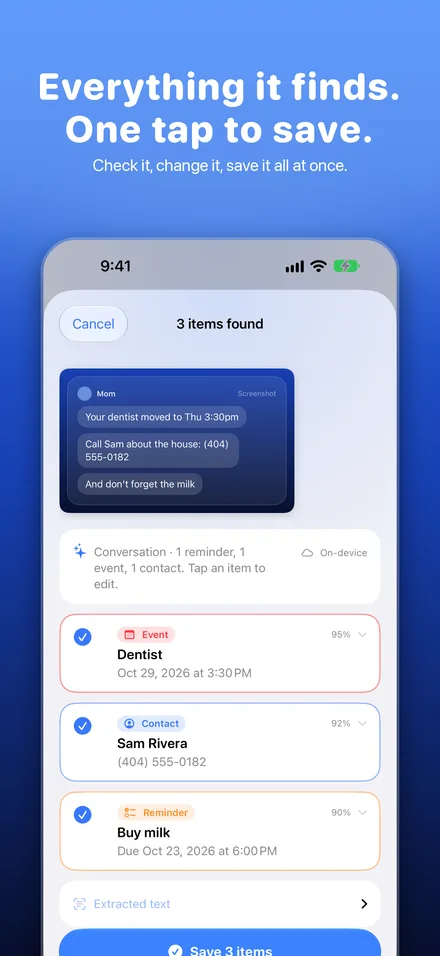
- Shotodo uses the screenshot-to-task flow, creating reminders or calendar events without retyping details.
The share sheet is the menu that pops up when you tap the share button in any iPhone app, and in Apple Shortcuts it lets you run a shortcut on whatever you're sharing, like turning a school email into a reminder without retyping it. This guide explains how it works, how to set it up, and what to fix when your shortcut refuses to show up.
What Is a Share Sheet in Shortcuts?
The share sheet is the panel that slides up when you tap the share button (the square with an arrow) on your iPhone. It shows apps and actions you can send the current thing to: a photo, a link, a school email, a text from the soccer group chat.
Apple Shortcuts can live inside that panel. When you turn on "Show in Share Sheet" for a shortcut, it appears as an option in the list, so you can highlight any text or screenshot and send it straight to a reminder, calendar event, or task without opening another app first. Apple documents this in its guide to sharing on iPhone.
That's the whole trick: see something, screenshot it, it's done. Shotodo is built around that flow, and you can read more about it at https://shotodo.app/about/.
How Does 'Show in Share Sheet' Work in Apple Shortcuts?
Where the toggle lives in the Shortcuts editor
Open the Shortcuts app, tap the shortcut you want, and look for the info (ⓘ) button at the bottom of the editor. Tap it, then toggle on "Show in Share Sheet." That single switch tells iOS to offer this shortcut whenever you tap the share button in any app. Without it, the shortcut stays invisible in the share sheet and you have to open it manually.
What inputs a share sheet shortcut can receive
When you share something to the shortcut, iOS passes along whatever you selected: text from a school email, a photo of a flyer, a link from a group chat, or a contact card. The shortcut then decides what to do with that input, such as turning a dentist appointment screenshot into a reminder. Shotodo is built around exactly this flow, and recent updates are listed at https://shotodo.app/changelog/.
Why Would a Parent Use a Share Sheet Shortcut?
Because the stuff you need to remember arrives in other apps. A dentist appointment sits in a text thread, the field trip date hides in a school email, and the grocery list lives in a group chat. Without a share sheet shortcut, you read it, switch apps, and retype it into Reminders or Calendar. With one, you tap Share, pick the shortcut, and it lands where you'll actually see it.
The dentist text becomes a reminder for the day before. The school email's date becomes a calendar event. The group chat's snack list becomes a reminder called "don't forget the milk." Apple documents this flow in the Shortcuts User Guide, including running shortcuts from the share sheet.
Shotodo works the same way: screenshot it, it's done. Your privacy matters too, so you can review how screenshots are handled at https://shotodo.app/privacy/.
How Do You Add a Shortcut to the Share Sheet?
Step-by-step setup
- Open the Shortcuts app and tap your shortcut (or make a new one that saves a reminder or calendar event).
- Tap the info (i) icon at the top.
- Turn on Show in Share Sheet.
- Under Accepted Types, tick what the shortcut should receive. For school emails pick Mail or plain text; for group chats pick text and images. Fewer types means a tidier share sheet.
- Tap Done.
Testing it from Messages and Mail
Open a text from a parent chat, tap the share button, and swipe to find your shortcut. Tap it and confirm the reminder lands in Reminders with the right details. Then try a school email in Mail the same way. If the shortcut is missing from the list, scroll down and tap Edit Actions to pin it.
That same tap-and-done flow is how Shotodo works: screenshot it, it's done, no retyping the dentist appointment.
Why Is My Shortcut Not Showing in the Share Sheet?
Work through these five causes in order. Most share sheet problems are one of these.
Cause 1: Accepted type doesn't match what you're sharing
Every shortcut that shows in the share sheet is set to accept certain input types, like text, photos, or files. If you're sharing a photo and your shortcut only accepts text, it stays hidden. In the Shortcuts editor, open the shortcut, tap the info (i) panel, and check Show in Share Sheet along with the accepted types. Apple documents how shortcut inputs and action parameters work in the Shortcuts editor guide, which is the fastest way to match your input type to what the app sends.
Cause 2: Shortcut not enabled or pinned
In the same info panel, confirm Show in Share Sheet is actually switched on. Then check Settings > General > AirDrop & Handoff, or the share sheet's Edit Actions list, in case the shortcut was toggled off there.
Cause 3: The app you're in limits third-party share sheet actions
Some apps, especially school portal and banking apps, restrict what appears in their share sheet. Try sharing the same content from Mail or Messages. If it shows up there, the app is the problem, not your setup.
Cause 4: iOS needs a restart or the shortcut needs re-saving
New shortcuts sometimes take a moment to register. Toggle Show in Share Sheet off and on, re-save, and if it still fails, restart the iPhone. This clears most stale cases.
Cause 5: Shortcut appears but does nothing when tapped
That usually means the shortcut expects input in a spot the share sheet isn't filling. Apps like Shotodo handle this for you, but for a homemade shortcut, add a "Receive input from Share Sheet" step at the top and test again.
Share Sheet Shortcut vs. Opening the App Directly: Which Is Faster?
It depends on what you're capturing. Here's the honest breakdown for a typical school email or group-chat plan:
| Method | Steps | Best for |
|---|---|---|
| Share sheet shortcut | Highlight text, tap Share, tap your shortcut | A line buried in a long email or chat |
| Screenshot first | Take screenshot, open app from it | Anything visual: schedules, flyers, forms |
| Open the app directly | Switch apps, find entry, retype | Nothing, if you can avoid it |
The share sheet wins when the plan is already written down somewhere. You skip the retyping, which is where most of the time goes and where details get lost. Opening the app directly means switching apps, remembering what you read, and typing it all back in.
Screenshots sit in between: one extra tap, but you capture everything, including dates buried in a photo of a paper form.
Shotodo runs on the screenshot route, so it handles the flyer-on-the-fridge case better than a text-only shortcut would. The tradeoff: if your plan is plain text in an email, a share sheet shortcut to a reminder app skips a step Shotodo can't.
How Does Shotodo Fit Into the Share Sheet Workflow?
Shotodo is a screenshot-to-task app: screenshot it, and it's done. The reminder or calendar event is created for you, so a dentist appointment buried in a school email never gets retyped. Apple lets third-party apps add their own actions to the share sheet, which is how Shotodo appears as an option when you share a screenshot or photo (Apple Support).
It's honest to say where it falls short next to a DIY shortcut. A shortcut you build yourself is free, and you can chain exactly the steps your family needs. Shotodo handles the reading-and-typing part for you, but it's a fixed flow you can't customize the way Shortcuts can. If your needs are simple, the DIY route wins on price; if you'd rather not build anything, Shotodo wins on setup.
Quick Reference: Share Sheet Settings That Matter
Before assuming a shortcut is broken, run through this checklist:
- "Show in Share Sheet" is on: Open the shortcut, tap the info (i) icon, and confirm the toggle is enabled.
- App is included: In the same settings, check the app list. If the app you're sharing from (Mail, Messages, WhatsApp) is excluded, the shortcut won't appear there.
- Shortcut type: Actions like "Receive text from Share Sheet" must be the first step, or the shortcut won't accept shared content.
- Share sheet isn't overloaded: Too many shortcuts make the one you need hard to spot. Keep favorites pinned.
- iOS is current: Share sheet behavior changes between versions, so update before troubleshooting further.
If Shotodo still doesn't appear after all five, delete and re-add it.
FAQ
Why did my share sheet shortcut stop working after an iOS update?
Updates sometimes reset share sheet permissions or change how apps appear in the list. Open the shortcut, tap the info (i) icon, and confirm 'Show in Share Sheet' is still on. Then check Settings > General > AirDrop & Handoff and the share sheet's Edit Actions list. If it still fails, toggle the setting off and on, re-save, and restart the iPhone.
Why does my shortcut appear in some apps but not others?
Some apps, especially school portal and banking apps, restrict what third-party actions can appear in their share sheet. Test the same content from Mail or Messages. If the shortcut shows up there, the app is limiting it, not your setup. Also check the app list in the shortcut's info panel in case the app was excluded there.
Why does my shortcut open but do nothing with what I shared?
The shortcut probably isn't receiving the shared content where it expects it. Open the editor and make sure a 'Receive input from Share Sheet' step is the first action, then check that the Accepted Types match what you're sharing, like text for emails or images for screenshots. Re-save and test again from Messages.
How do I stop my share sheet from being overloaded with shortcuts?
Swipe to the end of the share sheet row and tap Edit Actions, then untick everything you don't use and pin the few you rely on daily. Fewer accepted types in each shortcut also keeps the list tidy, since a shortcut only appears when the content you're sharing matches what it accepts.
Can I share a photo to a shortcut that was set up for text?
No. A shortcut only appears in the share sheet when the item you're sharing matches its Accepted Types. If you built it for text from school emails, a photo of a flyer won't trigger it. Open the shortcut's info panel and add images to Accepted Types, or build a separate shortcut for visual captures.