 Shotodo
 By
This walkthrough covers exactly where hidden photos go, who can see them, how to hide and unhide them, and how to turn on the lock using only the built-in Photos app.
What to know
- Hiding a photo on iPhone moves it to the Hidden album in Photos; it is not deleted and still syncs through iCloud Photos.
- On iOS 16 or later, the Hidden album is locked by default with Face ID or Touch ID, and Recently Deleted is locked the same way.
- The Face ID lock only stops casual browsing on an unlocked phone; anyone who knows your passcode can open the Hidden album.
- Hiding does not remove a photo from shared albums or Messages attachments, so remove it there separately if needed.
- Unhidden photos return to their original date in your library, and deleted photos stay recoverable in Recently Deleted for 30 days.
Where do hidden photos go on iPhone?
When you hide a photo, it doesn't get deleted. It moves to the Hidden album inside the Photos app, and it disappears from your main library grid, Memories, and Featured photos. Your kids' birthday party shots stay on your phone, just out of sight.
Finding the Hidden album in iOS 16, 17 and 18
Open Photos, tap Albums, and scroll to find Hidden. On iOS 18 it may sit under a Utilities section instead. From iOS 16 onward, the album is locked by default, so you'll use Face ID or Touch ID to open it. Apple documents this in its guide to hiding photos and using the Hidden album.
What still shows the photo elsewhere
Hiding is local. The photo still appears in shared albums, in Messages attachments, and anywhere you've sent or saved it. If a school-party photo lives in a group chat, hiding it in Photos won't remove it there. And if you use something like Shotodo to save a screenshot as a reminder, hiding the original screenshot won't touch the saved task (https://shotodo.app/screenshot-to-task/).
Can other people see my hidden photos on iPhone?
Anyone holding your unlocked phone can open the Hidden album. Hiding a photo only moves it out of your library and into the Hidden album in Albums; before iOS 16, that album sat there with no lock on it. A curious teenager or a friend borrowing your phone to look at holiday pictures could tap straight in.
The default before iOS 16
On iOS 15 and earlier, the Hidden album was even visible in the Albums list, so anyone scrolling could spot it. iOS 16 changed that: the album is hidden from the list by default, and you can turn on a lock that requires Face ID or Touch ID to open it. If you're on iOS 16 or later, check Settings, then Photos, and make sure Use Face ID (or Show Hidden Album) is switched on for your setup.
What Face ID protection does and does not stop
The lock stops someone casually opening the Hidden album while your phone is already unlocked. It does not stop someone who knows your passcode, because they can unlock the phone itself and open the album normally. Face ID protects the album, not the phone. If that's not enough for certain photos, that's a job for a separate app with its own passcode, not the built-in Photos setting.
How do I hide photos on iPhone using the Photos app?
Hiding a photo takes about five seconds: open it, tap the share button, scroll down, tap Hide, then confirm. The photo vanishes from your library and years of memories view and moves to the Hidden album. No third-party app needed.
Hiding one photo
Open the photo, tap the share button (the square with an arrow), scroll down the menu and tap Hide. Confirm with Hide Photo. That's it. If you screenshot a party invite or a school form you don't want sitting in your camera roll, hide it the same way.
Hiding several at once
In your library, tap Select in the top corner, tap each photo you want gone from view, then tap the share button and choose Hide. All of them move to the Hidden album in one go.
Hiding a Live Photo or video
The steps are identical. Live Photos, videos, and screenshots all hide the same way through the share button.
One thing worth knowing: since iOS 16, the Hidden album is locked with Face ID or Touch ID by default, per Apple's support documentation, so anything you tuck away there stays private even if someone borrows your phone to show you a photo.
How do I lock the Hidden album with Face ID or Touch ID?
Good news: if your iPhone runs iOS 16 or later, the Hidden album is already locked. The first time you open it, Photos asks for Face ID or Touch ID before showing anything inside. No setup needed.
Step-by-step: opening the locked Hidden album
- Open the Photos app and tap Albums.
- Scroll to the bottom, under Utilities.
- Tap Hidden. Your iPhone asks for Face ID or Touch ID.
- Once it recognises you, the album opens and stays unlocked until you leave Photos or lock your phone.
If you don't see Hidden at all, it may be switched off. Go to Settings > Photos and toggle Show Hidden Album on.
Turning the lock on or off in Settings > Photos
The lock is on by default, and most parents should leave it that way. If you'd rather open Hidden without the extra step, go to Settings > Photos and toggle "Use Face ID" (or "Use Touch ID") off. That removes the prompt for both the Hidden and Recently Deleted albums. Turn it back on the same way. Locking matters because anyone who picks up an unlocked phone can otherwise browse straight into that album, and hiding a photo is about privacy, not secrecy you'd need an app like Shotodo to manage.
What happens if Face ID fails (passcode fallback)
Face ID isn't perfect: bright sun, a mask, or a sleeping baby on your shoulder can stop the scan. When that happens, Photos falls back to your passcode after a failed attempt or two, so you're never locked out of your own pictures. The same fallback applies to the Recently Deleted album. If you share an Apple ID with a child on Family Setup, remember their device uses their own passcode, not yours. And if you keep sensitive screenshots alongside hidden photos, our privacy policy at https://shotodo.app/privacy/ explains how we handle data.
How do I unhide photos on iPhone?
Open Photos, scroll to Utilities, and tap Hidden. Authenticate with Face ID or Touch ID if the album is locked, tap Select, choose one photo or tap several, then tap the three-dot menu and choose Unhide. The photos leave the Hidden album immediately.
Unhiding one or many
The steps are the same whether you're restoring a single screenshot or a whole batch. Tap Select, tap each photo you want back, and unhide them all in one go. There's no limit and no extra confirmation step.
Where the photo lands after unhiding
Unhidden photos return to their original date in your library, not to today. Scroll back to when you took them and they'll be sitting in place, alongside the rest of your camera roll. If you can't find one, check the Recently Deleted album too, since anything deleted there is kept for 30 days before it's gone for good, per Apple Support. And if the photo you're rescuing is a plan from a school email or group chat, screenshot apps like Shotodo can save you retyping it into a reminder.
What's the difference between hiding a photo and deleting it?
Hiding keeps the photo on your phone and in iCloud Photos. It just leaves your main library and Years/Memories views, so nobody scrolling through your camera roll sees it. Deleting is different: the photo moves to Recently Deleted, sits there for 30 days, then it's gone for good. Hiding is reversible any time; deleting only frees space once those 30 days pass.
| Hidden | Deleted | |
|---|---|---|
| Still on your phone | Yes | Yes, for 30 days |
| In iCloud Photos | Yes | Yes, for 30 days |
| Shows in main library | No | No |
| Recoverable | Any time | Only within 30 days |
| Frees up space | No | Yes, after 30 days |
Recently Deleted is also locked on iOS 16+
Deleting isn't a loophole for privacy. On iOS 16 and later, Recently Deleted is locked with Face ID or Touch ID, same as the Hidden album. So a borrowed phone won't show either one without your face or fingerprint.
iCloud Photos: hidden photos still sync
If you use iCloud Photos, hidden pictures sync to every device signed in with your Apple ID. Hide a photo on your iPhone and it's hidden on your iPad too. Someone with your Apple ID password can still see them on another device, so hiding protects against casual scrolling, not account access.
Should you use a third-party app to hide photos on iPhone?
For most parents, no. The built-in Hidden album, locked with Face ID or Touch ID, covers the everyday case: screenshots of school emails and group chats you don't want popping up while the kids swipe through your camera roll. It's already on your phone, and nothing new to remember.
What the built-in album can't do
It's all or nothing. You can't lock one photo and leave the rest open, there's no fake PIN that opens a dummy album, and there's no way to set a different password from your phone's own. Anything in the Hidden album also syncs through iCloud Photos, so it appears on every device signed into your Apple ID (Apple Support).
When a vault app earns its place
A vault app makes sense if you share an Apple ID with a spouse or kids and want photos kept off their devices, or if you want a decoy passcode for genuinely private material. The trade-off is real: another app to update, another password, and one more icon on a phone that's already full.
A quick criteria check any app should pass
Before installing one, check three things: it works with Face ID rather than only a passcode, it has a clear delete-from-vault rule, and the developer explains what happens to your photos if you cancel a subscription. If an app fails any of those, the built-in Hidden album is the safer default.
Hidden photos and screenshots: keeping your camera roll tidy
Hide it or act on it?
Most hidden photos aren't embarrassing, they're screenshots: the school email with the party time, the group chat about Saturday, the receipt you need to keep. Hiding them gets them out of your camera roll, but the plan still only lives in a picture. If you'll actually need it, act on it first, then you can delete the screenshot instead of hiding it.
Turning screenshot plans into Reminders and Calendar entries
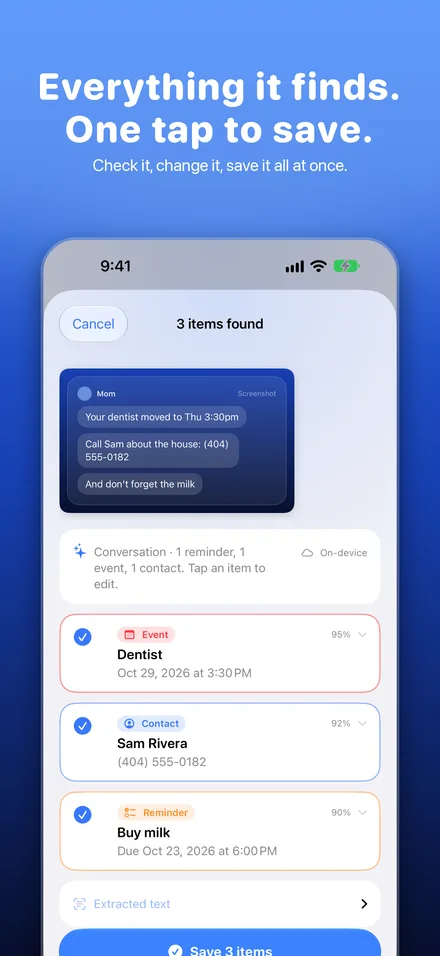
Shotodo reads a screenshot and saves it as a task or event in one tap. Screenshot the dentist appointment, tap, and it's in your calendar. Screenshot the school email, tap, and "form due Monday" is a reminder. No retyping, so it saves a lot of typing, and once the details are in Reminders or Calendar, the screenshot has done its job. Delete it, and your Hidden album stays for the things you genuinely want out of sight.
FAQ
Do hidden photos on iPhone get backed up to iCloud?
Yes. Hiding is a local change to how photos display, so hidden pictures still sync through iCloud Photos to every device signed in with your Apple ID. Hide one on your iPhone and it stays hidden on your iPad too. Anyone with your Apple ID password can view them on another device, so the Hidden album protects against casual scrolling, not account access.
Why can't I find the Hidden album on my iPhone?
First, check the version: the locked Hidden album needs iOS 16 or later. Then open Photos, tap Albums, and scroll down, since on iOS 18 it sits under a Utilities section near the bottom. If it's missing entirely, go to Settings > Photos and toggle Show Hidden Album on. That switch makes the album visible again in the Albums list.
Can someone see my hidden photos if they know my passcode?
Yes. The Face ID or Touch ID lock protects the album while the phone is already unlocked, but someone who knows your passcode can unlock the phone itself and open the Hidden album normally. Face ID protects the album, not the phone. For photos that need stronger protection, use a separate vault app with its own passcode.
Does hiding photos on iPhone delete them from a shared album?
No. Hiding only moves a photo out of your main library and into the Hidden album. It still appears in shared albums, in Messages attachments, and anywhere you've sent or saved it. A photo living in a group chat stays there even after you hide it in Photos, so remove it from the shared album separately if that matters.
Is there a way to hide a whole album, not just single photos?
No. The Photos app only lets you hide individual photos or a selection of several at once, one tap at a time. There's no built-in option to hide an entire album, lock one photo while leaving the rest open, or set a separate password from your phone's. A third-party vault app is the only route if you need album-level hiding.
Note on the writing: AI assisted, Shotodo edited. Send fixes to [email protected].